To time block your day, put the fixed events on a grid first, place your most important task in the earliest open block of an hour or more, then fill the remaining 30-minute slots one task at a time and leave at least one slot empty. That is the whole method. The rest of this post walks through one example day from the raw to-do list to the finished grid, then shows how to re-block the afternoon when the morning runs over, which is where most time-blocked days fall apart.
Time blocking in one paragraph
Time blocking means deciding when each task happens, not only what the tasks are. A to-do list says "write the proposal". A time-blocked day says "write the proposal, 09:00–10:30". The difference matters because a task without a time competes with everything else all day. Timeboxing is the close cousin: it fixes how long a task gets and stops when the time is up. In practice the two combine, and every block on the grid below has both a start time and a length. If you want the distinction in detail, see time blocking vs timeboxing.
Step 1: List the day and estimate each task
Start with a plain list. Do not open your calendar yet. For each item, write a rough estimate in 30-minute units and mark the one task that would make the day a success if it were the only thing you finished.
Here is the example list for a Wednesday:
| Task | Estimate | Priority |
|---|---|---|
| Write client proposal draft | 90 min | Top |
| Review two pull requests | 60 min | Normal |
| Reply to email and messages | 3 × 30 min | Normal |
| Prepare slides for Thursday | 60 min | Normal |
| Call the landlord | 30 min | Normal |
| Gym | 60 min | Normal |
| Plan tomorrow | 15 min | Normal |
Estimates in 30-minute units are coarse on purpose. Trying to guess whether something takes 40 or 50 minutes wastes planning time, and you will learn your real numbers from the end-of-day check anyway.
Keep the list short. In Chrobox usage data, the median planned day had 5 tasks. If your list has twelve real tasks, the grid in the next step will show you that they do not fit, which is useful information, but it is better to choose before you start.
Step 2: Draw the fixed events
Now open a blank grid from your start time to your end time in 30-minute rows and fill in only what you cannot move: meetings, commute, lunch, school pickup, a class. For the example Wednesday:
- 08:30–09:00 commute
- 11:00–11:30 team standup
- 12:30–13:30 lunch
- 15:00–16:00 client call
- 17:30 end of workday
What is left is your real capacity. On this Wednesday that is six hours of open time between 09:00 and 17:30. Many people discover at this step that the list from step 1 never fit in the day they had.
Step 3: Place the top task first, then the rest
The top task goes into the earliest open block that is at least as long as its estimate. Here that is 09:00–10:30, right after the commute and before the standup. Put it there before placing anything else.
Then fill the remaining open slots with one task per block. Batch the small, interruptible work (email, messages, quick replies) into a few fixed slots instead of letting it spread across the day. Leave one slot completely empty as a buffer.
The finished grid:
| Time | Block | Type |
|---|---|---|
| 08:30–09:00 | Commute | Fixed |
| 09:00–10:30 | Write client proposal draft | Top priority |
| 10:30–11:00 | Email and messages | Batched admin |
| 11:00–11:30 | Team standup | Fixed |
| 11:30–12:30 | Review two pull requests | Task |
| 12:30–13:30 | Lunch | Fixed |
| 13:30–14:00 | Email and messages | Batched admin |
| 14:00–14:30 | Buffer | Empty |
| 14:30–15:00 | Call the landlord | Task |
| 15:00–16:00 | Client call | Fixed |
| 16:00–17:00 | Prepare slides for Thursday | Task |
| 17:00–17:15 | Email and messages | Batched admin |
| 17:15–17:30 | Plan tomorrow | Task |
| 18:00–19:00 | Gym | Task |
Notice what is not on the grid: "check email whenever". The three admin slots are the only times the inbox is open, which is what keeps the 09:00 block intact.
The order matters more than it looks. In the same usage data, tasks marked as a priority were completed 44.5% of the time against 28.9% for the rest, and blocks that started early in the day were finished more often than evening ones. Putting the top task first protects it from everything that happens later. The method behind those numbers is in the completion data post.
Step 4: Re-block at midday when the morning runs over
A time-blocked day almost never runs exactly as drawn. Suppose the proposal took until 11:00 instead of 10:30, so the morning email slot vanished, and the pull request review then ran to 13:00, eating half of lunch. The wrong fix is to slide every remaining block 30 or 60 minutes later, because then the day ends at 18:30, the gym block gets squeezed, and tomorrow starts tired.
Instead, stop for five minutes when you sit down to lunch and redraw only the afternoon:
| Time | Original block | Re-blocked |
|---|---|---|
| 13:00–13:30 | Lunch | Lunch |
| 13:30–14:00 | Email and messages | Lunch, second half |
| 14:00–14:30 | Buffer | Email and messages |
| 14:30–15:00 | Call the landlord | Call the landlord |
| 15:00–16:00 | Client call | Client call |
| 16:00–17:00 | Prepare slides | Prepare slides |
| 17:00–17:15 | Email and messages | Email and messages |
| 17:15–17:30 | Plan tomorrow | Plan tomorrow |
The buffer absorbed the overrun: lunch kept its full hour, email moved into the empty slot, and the end of the day stayed at 17:30. Two admin slots instead of three is a loss you can live with. If the overrun had been an hour longer, the next block to go would be the landlord call, moved to tomorrow, not the slides that are due Thursday. This is why the buffer exists. A grid with no empty slots has nowhere to put a surprise except the evening.
Three rules for re-blocking:
- Keep the end time fixed. Move or drop blocks rather than extending the day.
- Drop from the bottom of the priority list. The top task is already done; protect the next most important one.
- Re-block once, at a set time. Constant re-planning becomes its own task. Midday is usually enough.
Step 5: Close the day by comparing plan and actual
Spend the last 15 minutes of the day writing two things next to each block: what actually happened and how long it really took. After a week, patterns show up. Email always takes 45 minutes, not 30. The 16:00 slot is where focus goes to die. Code review is consistently underestimated by half.
Feed those numbers back into step 1 the next morning. A short end-of-day routine for this is described in the daily review ritual.
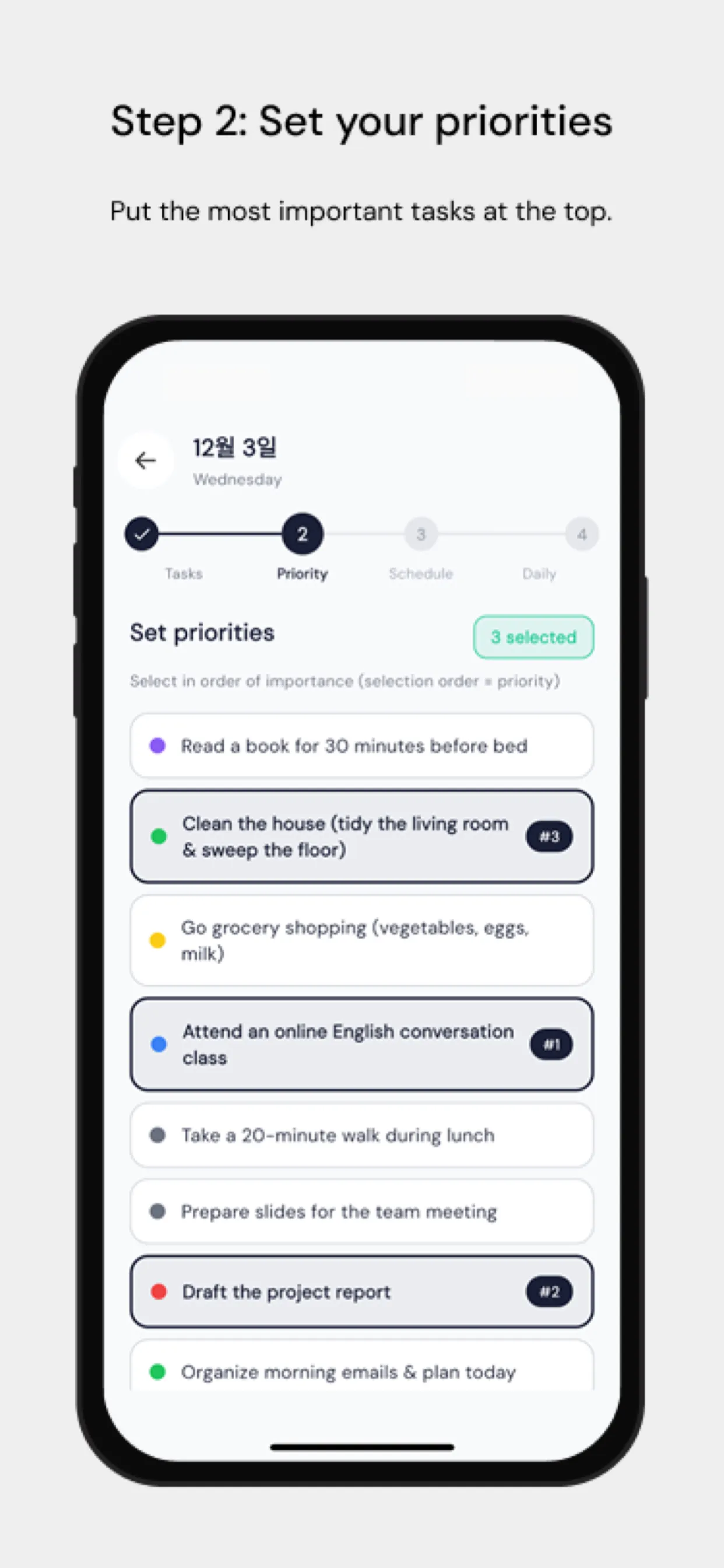
Time blocking your day in Chrobox
In Chrobox, each task on your list can be placed on the day timeline with a start time and a length, so the grid above becomes your actual schedule for the day. Events from your phone calendar appear on the same timeline, which makes the fixed blocks from step 2 visible before you place anything. When a block starts you get an alert and the focus timer counts down its length, and recurring blocks like the admin slots can be saved as a routine. At the end of the day, the daily reflection is where you note what ran over.