Tools & Comparisons

时间箱指南:玩转 Google Calendar、Apple Calendar 与 Outlook

Chrobox Team

2025年2月22日

6 分钟阅读

时间箱指南:玩转 Google Calendar、Apple Calendar 与 Outlook

Why Your Calendar is Already a Time-Boxing Tool

Most people use their calendar as a passive record of commitments. Time-boxing flips this: your calendar becomes an active plan for where your attention goes every hour of the day. The good news is that Google Calendar, Apple Calendar, and Outlook all have everything you need to start today.

Setting Up Time Blocks in Google Calendar

Open Google Calendar and create a new event. Give it the name of your task, not a vague label like "work." Set the duration to match your intended focus session. Under the "more options" menu, set your status to "Busy" and visibility to "Private" so colleagues cannot see the details or schedule over you.

Use color coding to distinguish block types. For example, green for deep work, blue for meetings, and orange for administrative tasks. Google Calendar's color system makes it easy to see at a glance whether your day is balanced or overloaded.

Create recurring blocks for daily habits like your morning planning session or end-of-day review. Recurring events ensure these critical routines never get crowded out.

Time-Boxing in Apple Calendar

Apple Calendar works best when paired with iOS Reminders or a task manager. Create a calendar dedicated to time blocks and give it a distinct color. When you add a block, use the notes field to list the specific tasks you plan to complete during that session.

Enable the "Alerts" feature to get a five-minute warning before each block starts. This gives you time to close other tabs, silence notifications, and mentally shift into focus mode before the block begins.

Outlook Time-Boxing for Teams

Outlook's strength is its deep integration with Microsoft Teams and shared calendars. Block time using "New Appointment" rather than "New Meeting" to keep it off shared calendars by default. Set the show-as status to "Busy" and enable the private flag.

Use Outlook's category colors to match your organization's workflow. If your team already uses color conventions for meeting types, extend those conventions to your personal work blocks so the visual language stays consistent.

The Problem with Manual Calendar Time-Boxing

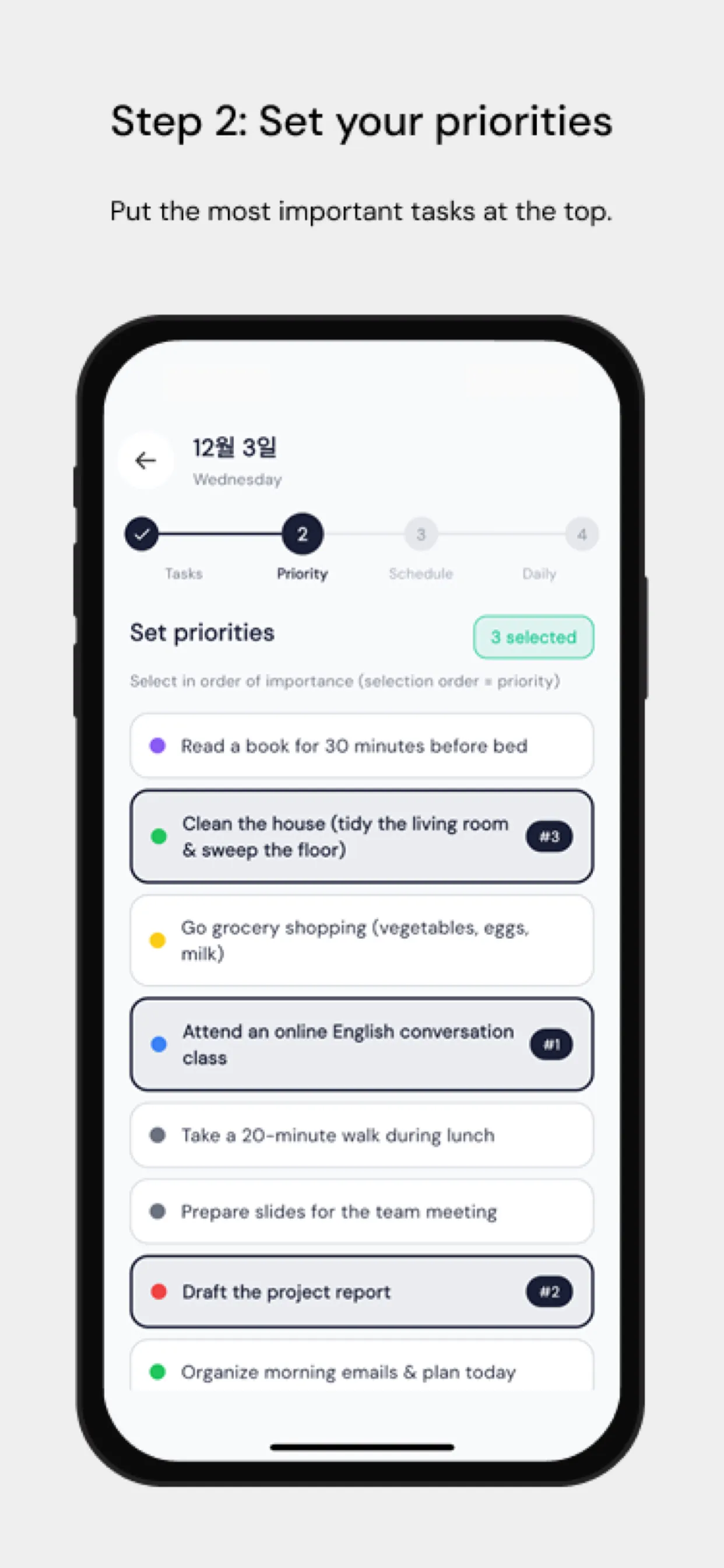
The biggest friction point is that manually dragging tasks onto a calendar is time-consuming and rarely updated when plans change. Chrobox solves this by syncing your task list directly with your calendar. Add a task with an estimated duration, and Chrobox finds the next available slot and creates the block automatically. When priorities shift, it reschedules affected blocks without manual intervention.

Tips for Protecting Your Time Blocks

Communicate your system to your team. Let them know that blocked time means you are unavailable, not just tentatively busy. Designate a specific window each day for impromptu requests so colleagues have a predictable time to reach you without disrupting your blocks.

Review your calendar each morning for the next 24 hours. Confirm that your blocks align with your top priorities and adjust if a new urgent task has emerged. This five-minute check prevents the day from running you instead of you running the day.

#time-boxing
#google-calendar
#apple-calendar
#outlook
#calendar-apps

常见问题

我可以在任何日历应用中使用时间箱方法吗?

可以。任何允许创建定时日程的日历都支持基础的时间箱管理。Google Calendar、Apple Calendar 和 Outlook 都能完美配合。关键在于将每个日程视为专注的工作时间块,而不仅仅是一个提醒。像 Chrobox 这样的应用在此基础上实现了自动化,可以直接将任务同步到您的日历时间块中。

如何防止日历邀请打乱我的时间块?

将您的时间箱时间块标记为“忙碌”,这样其他人就无法占用该时段。在 Google Calendar 中,将可见性设为“私人”,状态设为“忙碌”。在 Outlook 中,使用状态设置功能。同时,向同事说明这些被占用的时段是您的专属工作时间,并非空闲时段。

有办法在日历中自动进行时间箱规划吗?

有的。Chrobox 可以与您现有的日历集成,自动为您的任务创建时间块。您只需添加任务并预估时长,Chrobox 就会自动寻找空闲时段并填入您的日历,完全省去了手动拖放的繁琐步骤。

立即使用 Chrobox 开始时间盒规划

开启 3 天免费试用,彻底改变您的生产力。

开始免费试用