Vì sao lịch của bạn đã là một công cụ Time-Boxing
Hầu hết mọi người sử dụng lịch của mình như một bản ghi thụ động về các cam kết. Time-boxing đảo ngược điều này: lịch của bạn trở thành một kế hoạch chủ động cho việc sự chú ý của bạn sẽ đi đâu mỗi giờ trong ngày. Tin tốt là Google Calendar, Apple Calendar, và Outlook đều có mọi thứ bạn cần để bắt đầu ngay hôm nay.
Thiết lập các khối thời gian trong Google Calendar
Mở Google Calendar và tạo một sự kiện mới. Đặt tên cho nó theo tên nhiệm vụ của bạn, không phải một nhãn mơ hồ như "công việc". Đặt thời lượng khớp với phiên tập trung dự định của bạn. Trong menu "tùy chọn khác", đặt trạng thái của bạn là "Bận" và chế độ hiển thị là "Riêng tư" để đồng nghiệp không thể xem chi tiết hoặc đặt lịch chồng lên bạn.
Sử dụng mã màu để phân biệt các loại khối. Ví dụ, xanh lá cho deep work, xanh dương cho họp hành, và cam cho các nhiệm vụ hành chính. Hệ thống màu sắc của Google Calendar giúp dễ dàng nhìn thấy ngay liệu ngày của bạn có cân bằng hay đang quá tải.
Tạo các khối định kỳ cho các thói quen hàng ngày như phiên lập kế hoạch buổi sáng hoặc đánh giá cuối ngày của bạn. Các sự kiện định kỳ đảm bảo những thói quen thiết yếu này không bao giờ bị chèn ép.
Time-Boxing trong Apple Calendar
Apple Calendar hoạt động tốt nhất khi kết hợp với iOS Reminders hoặc một trình quản lý nhiệm vụ. Hãy tạo một lịch riêng dành cho các khối thời gian và đặt cho nó một màu riêng biệt. Khi bạn thêm một khối, hãy sử dụng trường ghi chú để liệt kê các nhiệm vụ cụ thể bạn dự định hoàn thành trong phiên đó.
Bật tính năng "Cảnh báo" để nhận thông báo trước năm phút trước khi mỗi khối bắt đầu. Điều này cho bạn thời gian để đóng các tab khác, tắt thông báo, và chuyển đổi tinh thần sang chế độ tập trung trước khi khối bắt đầu.
Time-Boxing trong Outlook cho các nhóm
Điểm mạnh của Outlook là sự tích hợp sâu với Microsoft Teams và các lịch được chia sẻ. Hãy khoanh vùng thời gian bằng "Cuộc hẹn mới" thay vì "Cuộc họp mới" để giữ nó ngoài các lịch chia sẻ theo mặc định. Đặt trạng thái hiển thị là "Bận" và bật cờ riêng tư.
Sử dụng màu danh mục của Outlook để khớp với quy trình làm việc của tổ chức bạn. Nếu nhóm của bạn đã sử dụng quy ước màu sắc cho các loại cuộc họp, hãy mở rộng những quy ước đó sang các khối làm việc cá nhân của bạn để ngôn ngữ trực quan luôn nhất quán.
Vấn đề với Time-Boxing thủ công trên lịch
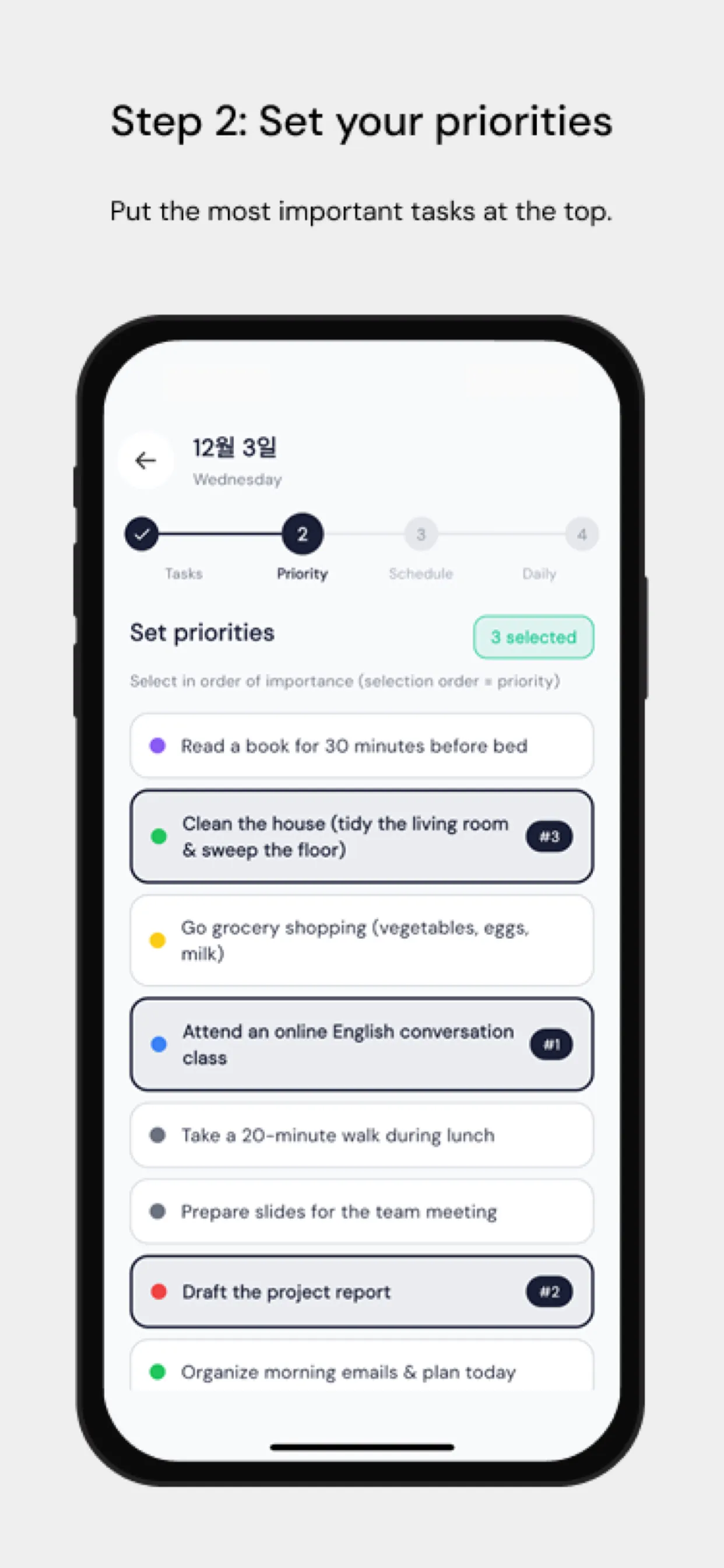
Điểm ma sát lớn nhất là việc kéo thả nhiệm vụ lên lịch một cách thủ công vốn tốn thời gian và hiếm khi được cập nhật khi kế hoạch thay đổi. Chrobox giải quyết điều này bằng cách đồng bộ danh sách nhiệm vụ của bạn trực tiếp với lịch của bạn. Thêm một nhiệm vụ với thời lượng ước tính, và Chrobox sẽ tìm khung giờ trống tiếp theo và tự động tạo khối. Khi ưu tiên thay đổi, nó sẽ lên lịch lại các khối bị ảnh hưởng mà không cần can thiệp thủ công.
Mẹo bảo vệ các khối thời gian của bạn
Hãy thông báo hệ thống của bạn cho nhóm. Cho họ biết rằng thời gian đã khoanh vùng nghĩa là bạn không khả dụng, chứ không chỉ là tạm thời bận. Chỉ định một khung giờ cụ thể mỗi ngày cho các yêu cầu bất chợt để đồng nghiệp có một thời điểm có thể dự đoán được để liên hệ với bạn mà không làm gián đoạn các khối của bạn.
Xem lại lịch của bạn mỗi sáng cho 24 giờ tiếp theo. Xác nhận rằng các khối của bạn khớp với các ưu tiên hàng đầu của bạn và điều chỉnh nếu một nhiệm vụ khẩn cấp mới xuất hiện. Việc kiểm tra 5 phút này ngăn ngày của bạn điều khiển bạn thay vì bạn điều khiển ngày của mình.