Anda duduk untuk mula bekerja. Tiga puluh saat kemudian, tanpa sedar, anda sedang menatal skrin. Ini bukanlah kegagalan kekuatan tekad — ia adalah aplikasi yang direka oleh ratusan jurutera untuk mengganggu niat murni sebegini. Jika anda mahu mendapatkan semula fokus anda, menyekat aplikasi yang mengganggu adalah satu-satunya perubahan paling berimpak tinggi yang boleh anda lakukan, dan ia hanya mengambil masa sekitar 10 minit untuk disediakan dengan betul.
Panduan ini merangkumi sebab mengapa penyekatan aplikasi benar-benar berkesan, perbezaannya antara iOS dan Android, cara menggabungkannya dengan sesi fokus berkotak masa, serta panduan langkah demi langkah yang praktikal untuk bermula hari ini.
Manfaat Menyekat Aplikasi yang Mengganggu
Menyekat aplikasi yang mengganggu semasa kerja yang dirancang bermakna kurang beralih daripada tugasan, kurang tekanan yang ditambah oleh gangguan, dan lebih banyak masa bekerja digunakan untuk perkara yang anda rancang. Manfaatnya datang daripada menghapuskan keputusan untuk "menyemak", bukan daripada berusaha lebih gigih.
- Kurang peralihan, kurang sisa perhatian. Selepas anda menyemak sesebuah aplikasi dan kembali, sebahagian perhatian anda masih tertinggal pada apa yang baru anda lihat (Leroy, 2009). Penyekatan menghentikan peralihan itu, bukannya meminta anda pulih daripadanya.
- Kurang tekanan akibat gangguan. Dalam satu kajian makmal tentang kerja e-mel yang diganggu, peserta menyiapkan tugasan mereka tidak lebih perlahan, tetapi melaporkan lebih banyak tekanan, kekecewaan, tekanan masa dan usaha (Mark, Gudith dan Klocke, 2008).
- Kurang tarikan daripada telefon yang tidak anda gunakan. Dalam eksperimen oleh Ward dan rakan-rakannya (2017), orang yang telefonnya berada di bilik lain mendapat skor lebih tinggi dalam ujian memori kerja yang tersedia berbanding orang yang telefonnya berada di atas meja. Replikasi kemudian mendapati kesan yang lebih kecil atau tiada kesan, jadi anggaplah dapatan ini sebagai petunjuk sahaja.
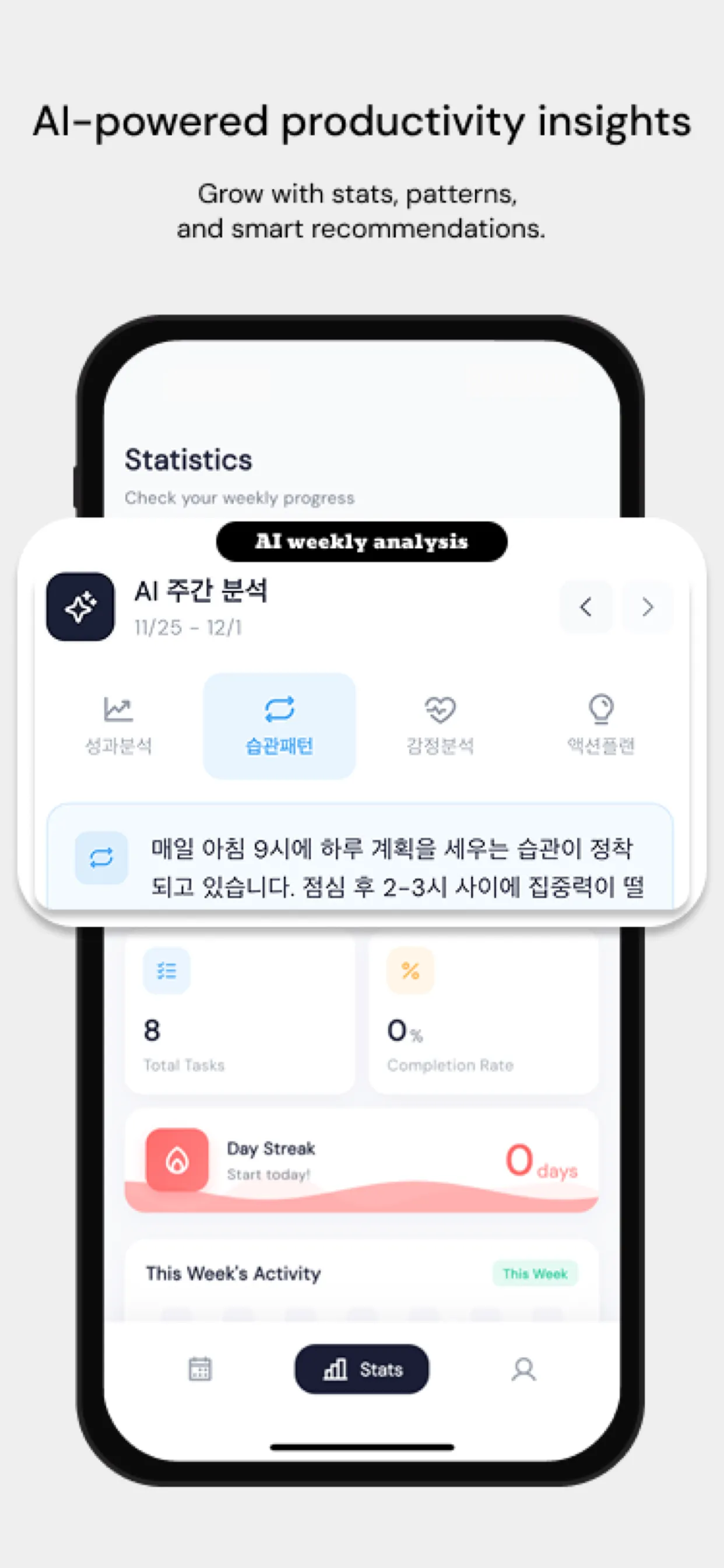
- Lebih banyak kerja yang dirancang dapat disiapkan. Dalam Chrobox, penyekatan berjalan di dalam kotak masa. Daripada 5,077 tugasan yang dirancang oleh 250 orang, tugasan yang diberi kotak masa disiapkan 48.1% daripada masa, berbanding 17.6% bagi tugasan yang dibiarkan tanpa jadual. Ini mengukur time-boxing secara keseluruhan, bukan penyekatan semata-mata, dan ia merupakan data pemerhatian, bukan eksperimen. Sumber: Adakah Timeboxing Benar-benar Berkesan? Data Penyelesaian daripada 5,077 Tugasan yang Dirancang.
Bahagian di bawah menerangkan mengapa kesan ini berlaku dan cara menyediakan penyekatan supaya anda terus menggunakannya.
Mengapa Penyekat Aplikasi Benar-benar Berkesan
Sisa Perhatian (Attention Residue)
Apabila anda beralih daripada tugasan yang sedang difokuskan untuk menyemak pemberitahuan dan kemudian kembali semula ke tugasan asal, otak anda tidak beralih dengan lancar. Kajian Sophie Leroy tentang "sisa perhatian" (attention residue) mendapati bahawa sebahagian daripada kapasiti kognitif anda kekal terlekat pada tugasan sebelumnya selama beberapa minit selepas beralih — bermakna semakan aplikasi selama 10 saat boleh menyebabkan anda kehilangan 5-10 minit fokus yang merosot pada kerja sebenar anda. Penyekatan aplikasi menghalang peralihan ini daripada berlaku sama sekali, yang jauh lebih menjimatkan tenaga berbanding memulihkan fokus yang telah terganggu.
Gelung Ganjaran Boleh Ubah (Variable Reward Loops)
Suapan media sosial, aplikasi pemesejan dan platform video pendek dibina berasaskan pengukuhan nisbah boleh ubah (variable-ratio reinforcement) — mekanisme psikologi yang sama yang membuatkan mesin slot ketagih. Anda tidak tahu sama ada tatalan seterusnya akan memaparkan sesuatu yang menarik, dan ketidakpastian itulah yang membuatkan anda terus menatal melebihi had masa yang anda tetapkan. Tiada jumlah kekuatan tekad yang mampu menewaskan gelung ganjaran boleh ubah ini secara konsisten pada waktu tersebut; satu-satunya penyelesaian yang bertahan lama adalah dengan menyekat akses semasa waktu anda perlu berfikir.
Mengurangkan Beban Keputusan
Setiap kali telefon anda berada berhampiran, soalan "patutkah saya menyemaknya?" menjadi keputusan aktif yang perlu diselesaikan oleh otak anda — berpuluh-puluh kali setiap jam. Penyekatan menghapuskan keputusan itu sepenuhnya semasa tempoh yang dijadualkan, sekali gus membebaskan ruang minda untuk kerja sebenar di hadapan anda.
iOS lwn Android: Cara Penyekatan Aplikasi Berfungsi di Sebalik Tabir
Kedua-dua platform ini menggunakan pendekatan teknikal yang berbeza secara asasnya, dan memahami perbezaan ini membantu menetapkan jangkaan yang realistik.
| iOS (Screen Time / FamilyControls) | Android (Perkhidmatan Kebolehcapaian) | |
|---|---|---|
| Mekanisme | Rangka kerja FamilyControls Apple memberikan "Pelindung" (Shield) ke atas aplikasi terpilih pada peringkat OS | Perkhidmatan kebolehcapaian memantau perubahan aplikasi latar depan dan menyekat pelancaran |
| Persediaan | Permintaan kebenaran sekali sahaja, kemudian pemilihan aplikasi melalui pemilih sistem | Pemberian kebenaran kebolehcapaian, kemudian pemilihan aplikasi dalam aplikasi |
| Tahap kesukaran pintasan | Tinggi — pelindung dikuatkuasakan oleh OS, bukan aplikasi itu sendiri | Sederhana — bergantung pada seberapa agresif perkhidmatan tersebut dilaksanakan |
| Penyesuaian | Apple mengehadkan perkara yang boleh dipaparkan pada skrin sekatan (UI sistem tetap dalam sesetengah versi) | Skrin sekatan tersuai yang lebih fleksibel boleh dihasilkan |
| Keandalan merentasi kemas kini OS | Secara amnya stabil kerana ia menggunakan rangka kerja rasmi Apple | Mungkin memerlukan pelarasan selepas kemas kini versi Android yang besar |
Tiada satu pun pendekatan yang "lebih baik" secara mutlak — penyekatan iOS lebih tahan usikan kerana ia dikuatkuasakan oleh sistem pengendalian itu sendiri, manakala penyekatan Android menawarkan pengalaman masa nyata yang lebih boleh disesuaikan. Kedua-duanya adalah pendekatan yang sah dan disokong baik setakat tahun 2026.
Menyekat Aplikasi Sahaja Tidak Mencukupi
Ini adalah bahagian yang sering diabaikan oleh kebanyakan panduan: menyekat aplikasi yang mengganggu hanya menghapuskan perkara negatif, tetapi ia tidak menambah perkara positif. Jika anda menyekat Instagram selama dua jam tanpa sebarang rancangan tentang apa yang ingin dilakukan sebagai ganti, anda berkemungkinan besar akan mengisi kekosongan itu dengan gangguan lain yang kurang bernilai, atau sekadar berasa gelisah dan tidak produktif.
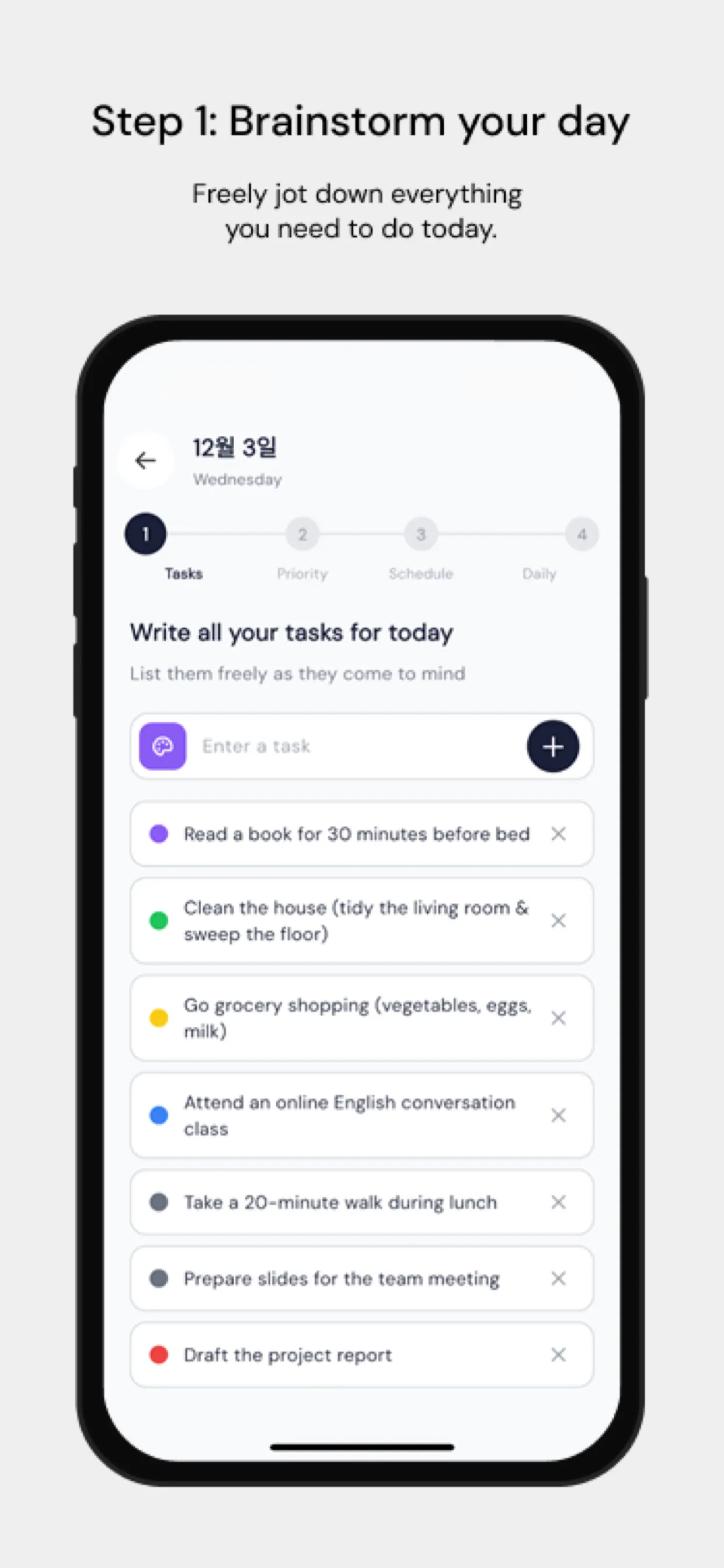
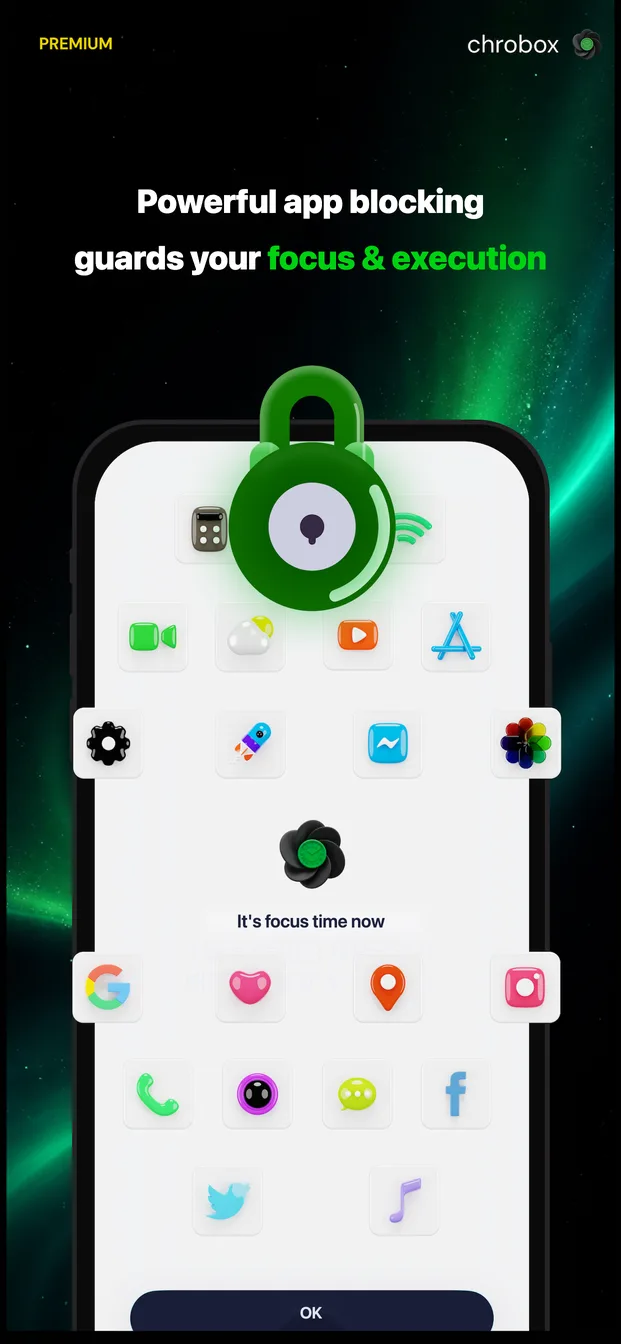
Sebab itulah sistem fokus yang paling berkesan menggabungkan penyekatan aplikasi dengan timeboxing (pengkotakan masa) — menetapkan tugasan khusus untuk blok masa yang tertentu. Chrobox melakukan ini dengan menghubungkan penyekatan secara langsung kepada jadual yang anda rancang: apabila tugasan fokus bermula, aplikasi mengganggu yang anda pilih akan dilindungi secara automatik (iOS) atau disekat (Android) untuk tempoh blok tersebut, kemudian dinyahsekat sebaik sahaja tugasan tamat. Anda tidak perlu lagi bersusah payah untuk mengaktifkan penyekatan secara manual, dan anda tidak akan dibiarkan tersekat tanpa sebarang rancangan kerja.
Panduan Persediaan Praktikal Langkah Demi Langkah
Langkah 1: Kenal Pasti Gangguan Sebenar Anda
Jangan sekat semua perkara — itu adalah punca mengapa usaha menyekat aplikasi biasanya diabaikan dalam masa seminggu. Semak laporan Screen Time sedia ada anda dan kenal pasti 2-4 aplikasi yang menyumbang kepada sebahagian besar penggunaan tanpa rancangan anda. Bagi kebanyakan orang, ini melibatkan aplikasi video pendek, suapan sosial dan satu aplikasi pemesejan yang lebih banyak digunakan untuk melayari kandungan berbanding komunikasi sebenar.
Langkah 2: Pilih Waktu Penyekatan, Bukan Larangan Menyeluruh
Tentukan bila anda benar-benar memerlukan perlindungan — biasanya semasa blok kerja mendalam (deep-work) yang dirancang, bukan sepanjang hari. Corak permulaan yang biasa adalah dua blok 90 minit: satu pada pertengahan pagi, dan satu lagi pada pertengahan petang.
Langkah 3: Berikan Kebenaran Sistem
Pada iOS, ini bermakna memberikan kebenaran kepada FamilyControls semasa kali pertama anda memilih aplikasi untuk disekat — dialog sistem sekali sahaja. Pada Android, ini bermakna memberikan kebenaran kebolehcapaian yang diminta oleh aplikasi, yang membolehkannya mengesan dan menyekat pelancaran aplikasi.
Langkah 4: Hubungkan Penyekatan dengan Tugasan yang Dirancang, Bukan Pemasa Berdiri Sendiri
Pemasa biasa dengan penyekatan adalah lebih baik daripada tiada apa-apa, tetapi tugasan berkotak masa yang disertakan dengan penyekatan adalah jauh lebih berkesan — anda tahu dengan tepat untuk apa perhatian yang dibebaskan itu digunakan, yang membezakan antara "tidak melihat telefon" dengan "benar-benar melakukan kerja."
Langkah 5: Semak Semula Selepas Seminggu
Lihat berapa banyak sesi yang anda selesaikan dengan penyekatan aktif berbanding berapa banyak sesi yang anda langkau atau pintas. Laraskan senarai aplikasi yang disekat dan tempoh waktu sekatan berdasarkan apa yang anda pelajari, berbanding hanya meneka pada mulanya.
Kesimpulan
Penyekatan aplikasi bukanlah satu hukuman — ia adalah tindakan menutup pintu terbuka yang anda tidak pernah berniat untuk lalui pun. Apabila digabungkan dengan rancangan sebenar untuk masa yang anda bebaskan, ia mengubah "saya patut lebih fokus" daripada sekadar niat yang samar-samar kepada tetapan lalai yang automatik. Sediakan tetingkap fokus tersekat pertama anda hari ini, walaupun yang singkat, dan rasai sendiri perbezaan tumpuan tanpa gangguan selama 45 minit berbanding 45 minit dengan telefon yang hanya selangkah daripada pandangan anda.