Mengapa Kalender Anda Sudah Menjadi Alat Time-Boxing
Kebanyakan orang menggunakan kalender mereka sebagai catatan pasif komitmen. Time-boxing membalikkan ini: kalender Anda menjadi rencana aktif untuk ke mana perhatian Anda pergi setiap jam sepanjang hari. Kabar baiknya adalah Google Calendar, Apple Calendar, dan Outlook semuanya memiliki semua yang Anda butuhkan untuk memulai hari ini.
Menyiapkan Blok Waktu di Google Calendar
Buka Google Calendar dan buat acara baru. Beri nama tugas Anda, bukan label samar seperti "kerja." Atur durasi agar sesuai dengan sesi fokus yang Anda maksudkan. Di bawah menu "opsi lainnya," atur status Anda ke "Sibuk" dan visibilitas ke "Privat" sehingga kolega tidak dapat melihat detailnya atau menjadwalkan sesuatu bertumpang tindih dengan Anda.
Gunakan kode warna untuk membedakan jenis blok. Sebagai contoh, hijau untuk deep work, biru untuk rapat, dan oranye untuk tugas administratif. Sistem warna Google Calendar memudahkan Anda melihat sekilas apakah hari Anda seimbang atau kelebihan beban.
Buat blok berulang untuk kebiasaan harian seperti sesi perencanaan pagi Anda atau review akhir hari. Acara berulang memastikan rutinitas penting ini tidak pernah tersingkirkan.
Time-Boxing di Apple Calendar
Apple Calendar bekerja paling baik ketika dipasangkan dengan iOS Reminders atau pengelola tugas. Buat kalender khusus untuk blok waktu dan beri warna yang berbeda. Ketika Anda menambahkan blok, gunakan kolom catatan untuk mendaftar tugas spesifik yang Anda rencanakan untuk diselesaikan selama sesi tersebut.
Aktifkan fitur "Alerts" untuk mendapatkan peringatan lima menit sebelum setiap blok dimulai. Ini memberi Anda waktu untuk menutup tab lain, membisukan notifikasi, dan bergeser secara mental ke mode fokus sebelum blok dimulai.
Time-Boxing di Outlook untuk Tim
Kekuatan Outlook adalah integrasi mendalamnya dengan Microsoft Teams dan kalender bersama. Blokir waktu menggunakan "Janji Baru" alih-alih "Rapat Baru" agar tetap tersembunyi dari kalender bersama secara default. Atur status tampilkan-sebagai ke "Sibuk" dan aktifkan tanda privat.
Gunakan warna kategori Outlook agar sesuai dengan alur kerja organisasi Anda. Jika tim Anda sudah menggunakan konvensi warna untuk jenis rapat, perluas konvensi tersebut ke blok kerja pribadi Anda sehingga bahasa visualnya tetap konsisten.
Masalah dengan Time-Boxing Kalender Manual
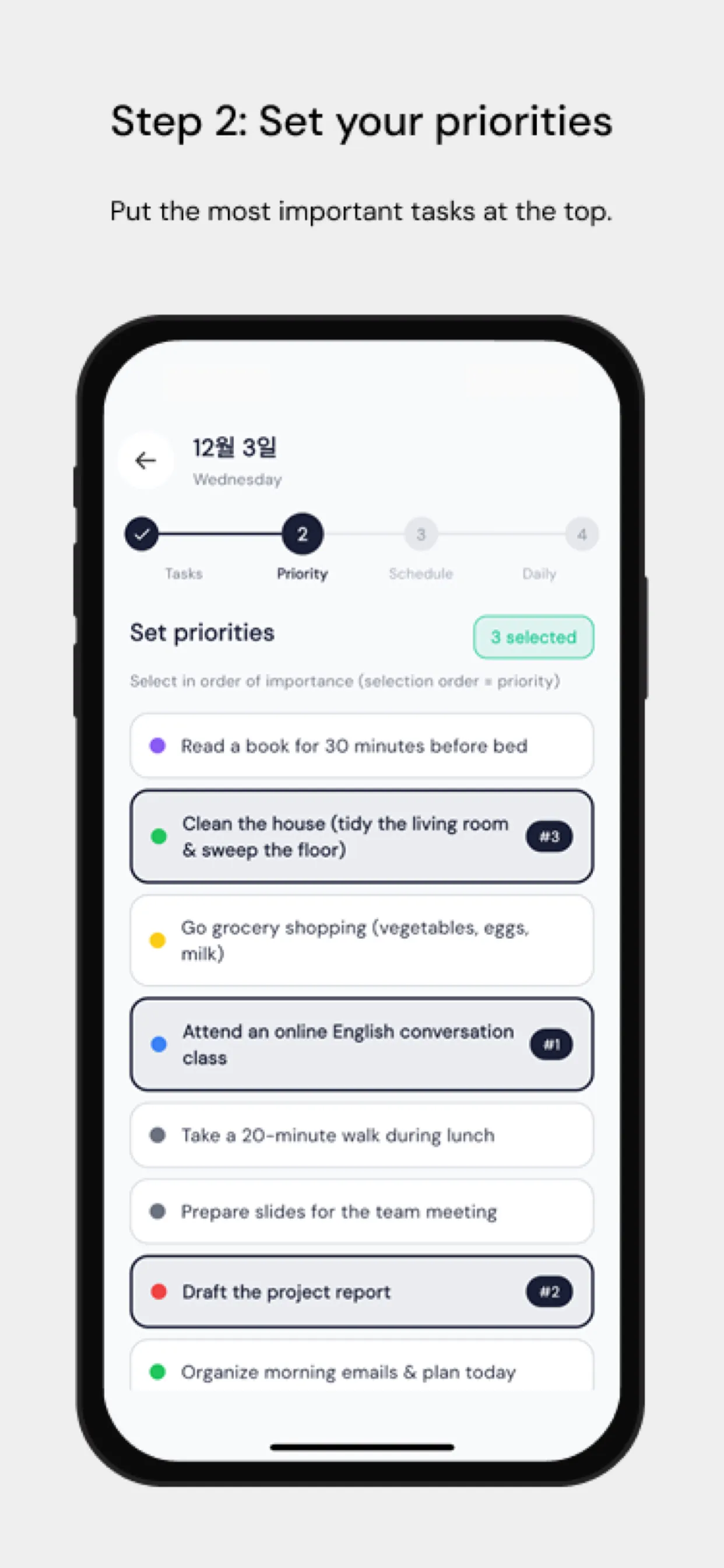
Titik gesekan terbesar adalah bahwa menyeret tugas secara manual ke kalender memakan waktu dan jarang diperbarui saat rencana berubah. Chrobox menyelesaikan ini dengan menyinkronkan daftar tugas Anda langsung dengan kalender Anda. Tambahkan tugas dengan perkiraan durasi, dan Chrobox menemukan slot yang tersedia berikutnya dan membuat blok secara otomatis. Ketika prioritas bergeser, ia menjadwal ulang blok yang terdampak tanpa intervensi manual.
Tips untuk Melindungi Blok Waktu Anda
Komunikasikan sistem Anda kepada tim Anda. Beri tahu mereka bahwa waktu yang diblokir berarti Anda tidak tersedia, bukan sekadar sedang sibuk sementara. Tetapkan jendela khusus setiap hari untuk permintaan mendadak sehingga kolega memiliki waktu yang dapat diprediksi untuk menghubungi Anda tanpa mengganggu blok Anda.
Tinjau kalender Anda setiap pagi untuk 24 jam ke depan. Konfirmasi bahwa blok Anda selaras dengan prioritas utama Anda dan sesuaikan jika tugas mendesak baru muncul. Pemeriksaan lima menit ini mencegah hari mengendalikan Anda alih-alih Anda mengendalikan hari.