Por Que a Sua Agenda Já É uma Ferramenta de Timeboxing
A maioria das pessoas usa a agenda como um registro passivo de compromissos. O timeboxing inverte isso: a sua agenda se torna um plano ativo de para onde vai a sua atenção a cada hora do dia. A boa notícia é que o Google Calendar, o Calendário da Apple e o Outlook têm tudo de que você precisa para começar hoje.
Configurando Blocos de Tempo no Google Calendar
Abra o Google Calendar e crie um novo evento. Dê a ele o nome da sua tarefa, e não um rótulo vago como "trabalho". Defina a duração de acordo com a sessão de foco pretendida. No menu "mais opções", defina o seu status como "Ocupado" e a visibilidade como "Privado", para que os colegas não vejam os detalhes nem marquem algo por cima do seu bloco.
Use cores para distinguir os tipos de bloco. Por exemplo, verde para deep work, azul para reuniões e laranja para tarefas administrativas. O sistema de cores do Google Calendar facilita ver de relance se o seu dia está equilibrado ou sobrecarregado.
Crie blocos recorrentes para hábitos diários, como a sua sessão de planejamento matinal ou a revisão de fim de dia. Os eventos recorrentes garantem que essas rotinas essenciais nunca sejam espremidas para fora.
Timeboxing no Calendário da Apple
O Calendário da Apple funciona melhor quando combinado com os Lembretes do iOS ou com um gerenciador de tarefas. Crie uma agenda dedicada aos blocos de tempo e dê a ela uma cor distinta. Ao adicionar um bloco, use o campo de notas para listar as tarefas específicas que você pretende concluir durante aquela sessão.
Ative o recurso de "Alertas" para receber um aviso cinco minutos antes do início de cada bloco. Isso dá tempo para fechar outras abas, silenciar notificações e mudar mentalmente para o modo de foco antes de o bloco começar.
Timeboxing no Outlook para Equipes
O ponto forte do Outlook é a integração profunda com o Microsoft Teams e as agendas compartilhadas. Reserve o tempo usando "Novo Compromisso" em vez de "Nova Reunião", para mantê-lo fora das agendas compartilhadas por padrão. Defina o status de exibição como "Ocupado" e ative o indicador de privado.
Use as cores de categoria do Outlook para acompanhar o fluxo de trabalho da sua organização. Se a sua equipe já usa convenções de cores para os tipos de reunião, estenda essas convenções aos seus blocos de trabalho pessoais para que a linguagem visual permaneça consistente.
O Problema do Timeboxing Manual na Agenda
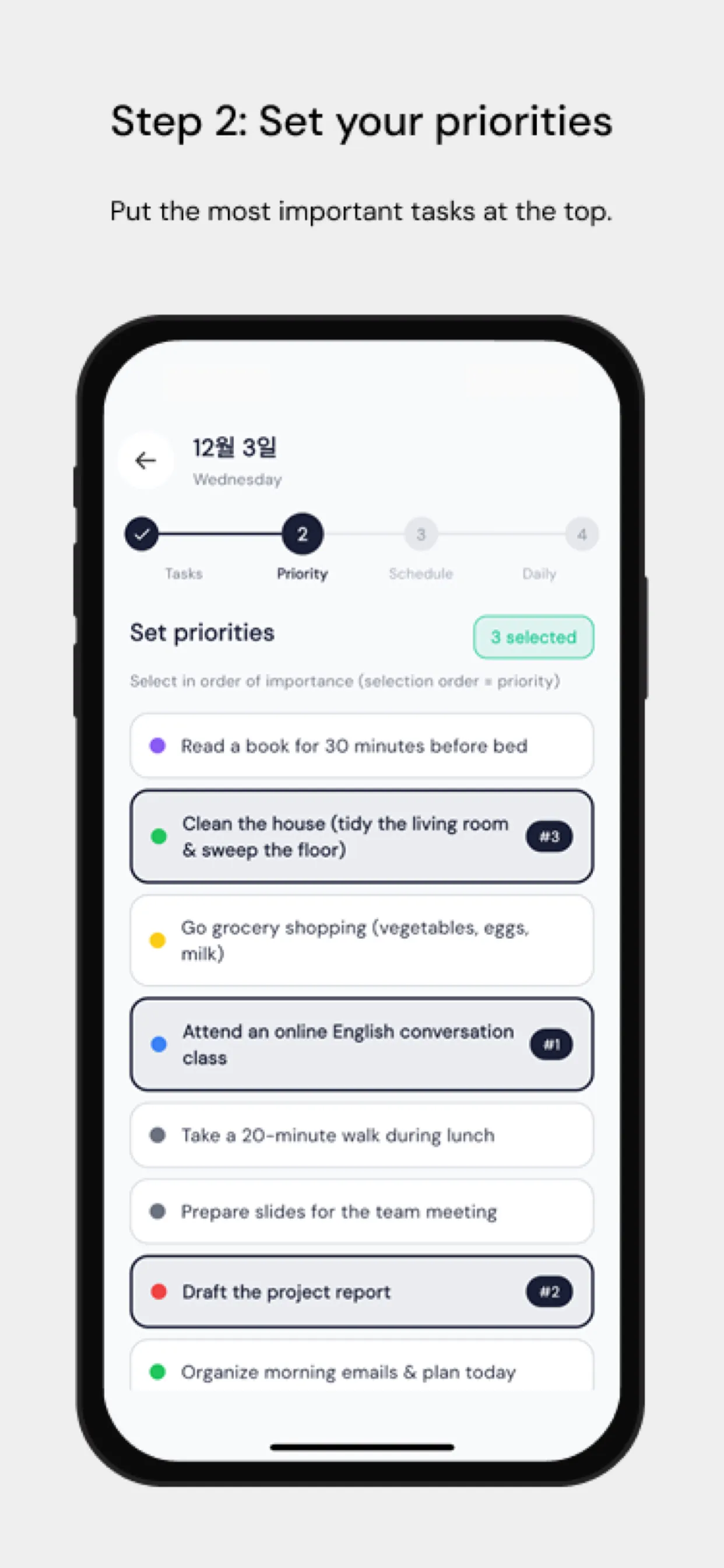
O maior ponto de atrito é que arrastar tarefas manualmente para uma agenda consome tempo e raramente é atualizado quando os planos mudam. O Chrobox resolve isso sincronizando diretamente a sua lista de tarefas com a sua agenda. Adicione uma tarefa com uma duração estimada e o Chrobox encontra o próximo horário disponível e cria o bloco automaticamente. Quando as prioridades mudam, ele reagenda os blocos afetados sem intervenção manual.
Dicas para Proteger Seus Blocos de Tempo
Comunique o seu sistema à equipe. Deixe claro que tempo bloqueado significa que você está indisponível, e não apenas provisoriamente ocupado. Reserve uma janela específica a cada dia para pedidos de última hora, para que os colegas tenham um horário previsível para falar com você sem atrapalhar os seus blocos.
Revise a sua agenda toda manhã para as próximas 24 horas. Confirme que os seus blocos estão alinhados às suas principais prioridades e ajuste se uma nova tarefa urgente tiver surgido. Essa checagem de cinco minutos evita que o dia comande você, em vez de você comandar o dia.