
Dlaczego Twój kalendarz to już narzędzie do time-boxingu
Większość ludzi używa swojego kalendarza jako biernego rejestru zobowiązań. Time-boxing odwraca to podejście: kalendarz staje się aktywnym planem tego, gdzie kieruje się Twoja uwaga w każdej godzinie dnia. Dobra wiadomość jest taka, że Google Kalendarz, Apple Calendar i Outlook mają już wszystko, czego potrzebujesz, aby zacząć już dziś.
Konfigurowanie bloków czasu w Google Kalendarzu
Otwórz Google Kalendarz i utwórz nowe wydarzenie. Nadaj mu nazwę swojego zadania, a nie niejasną etykietę w stylu „praca”. Ustaw czas trwania odpowiadający zamierzonej sesji skupienia. W menu „więcej opcji” ustaw swój status na „Zajęty”, a widoczność na „Prywatne”, aby współpracownicy nie widzieli szczegółów ani nie umawiali się na ten czas.
Użyj kolorowego oznaczania, aby rozróżniać typy bloków. Na przykład zielony dla pracy głębokiej, niebieski dla spotkań, a pomarańczowy dla zadań administracyjnych. System kolorów Google Kalendarza ułatwia szybkie zorientowanie się, czy Twój dzień jest zrównoważony, czy przeciążony.
Twórz cykliczne bloki dla codziennych nawyków, takich jak poranna sesja planowania czy wieczorny przegląd dnia. Cykliczne wydarzenia gwarantują, że te kluczowe rutyny nigdy nie zostaną wyparte przez inne zadania.
Time-boxing w Apple Calendar
Apple Calendar działa najlepiej w połączeniu z iOS Reminders lub menedżerem zadań. Utwórz osobny kalendarz dedykowany blokom czasu i nadaj mu wyróżniający się kolor. Dodając blok, wykorzystaj pole notatek, aby wypisać konkretne zadania, które planujesz ukończyć podczas tej sesji.
Włącz funkcję „Alerty”, aby otrzymywać pięciominutowe ostrzeżenie przed rozpoczęciem każdego bloku. Daje Ci to czas na zamknięcie innych kart, wyciszenie powiadomień i mentalne przestawienie się na tryb skupienia, zanim blok się zacznie.
Time-boxing w Outlooku dla zespołów
Siłą Outlooka jest głęboka integracja z Microsoft Teams i kalendarzami współdzielonymi. Blokuj czas za pomocą opcji „Nowe spotkanie w kalendarzu”, a nie „Nowe spotkanie”, aby domyślnie nie pojawiało się to na współdzielonych kalendarzach. Ustaw status widoczności na „Zajęty” i włącz flagę prywatności.
Użyj kolorów kategorii Outlooka, aby dopasować się do przepływu pracy Twojej organizacji. Jeśli Twój zespół stosuje już konwencje kolorystyczne dla typów spotkań, rozszerz te konwencje na swoje osobiste bloki pracy, aby język wizualny pozostał spójny.
Problem z ręcznym time-boxingiem w kalendarzu
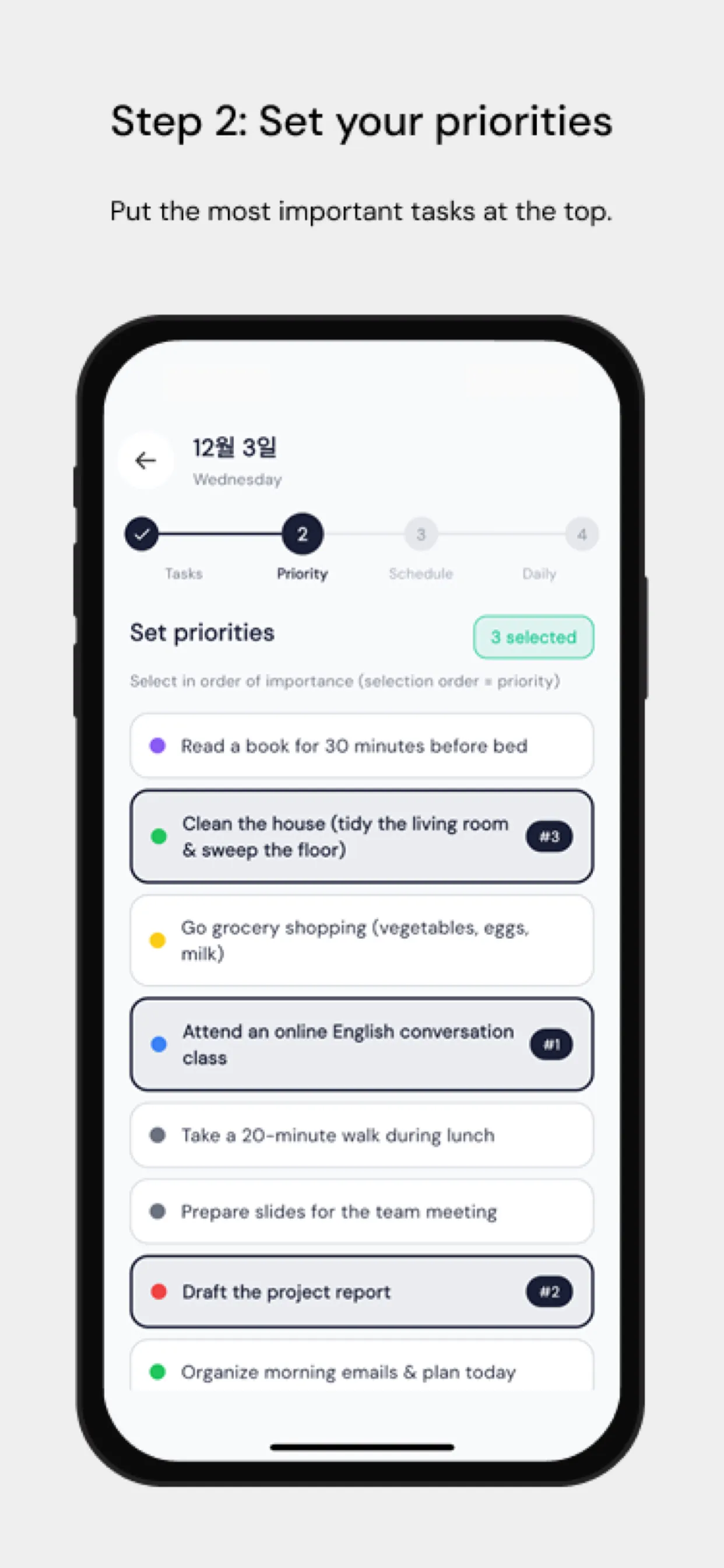
Największym punktem tarcia jest to, że ręczne przeciąganie zadań do kalendarza jest czasochłonne i rzadko aktualizowane, gdy plany się zmieniają. Chrobox rozwiązuje ten problem, synchronizując Twoją listę zadań bezpośrednio z kalendarzem. Dodaj zadanie z szacowanym czasem trwania, a Chrobox znajdzie najbliższy dostępny przedział i automatycznie utworzy blok. Kiedy priorytety się zmieniają, aplikacja przeplanowuje dotknięte tym bloki bez ręcznej interwencji.
Wskazówki dotyczące ochrony swoich bloków czasu
Zakomunikuj swój system zespołowi. Poinformuj współpracowników, że zablokowany czas oznacza, że jesteś niedostępny, a nie tylko wstępnie zajęty. Wyznacz konkretne okno każdego dnia na spontaniczne prośby, aby współpracownicy mieli przewidywalny czas na kontakt z Tobą, nie zakłócając Twoich bloków.
Przeglądaj swój kalendarz każdego ranka na kolejne 24 godziny. Potwierdź, że Twoje bloki odpowiadają najważniejszym priorytetom, i dostosuj je, jeśli pojawiło się nowe pilne zadanie. Ta pięciominutowa kontrola zapobiega temu, by to dzień Tobą kierował, zamiast żebyś Ty kierował dniem.