Waarom je agenda al een time-boxingtool is
De meeste mensen gebruiken hun agenda als een passief overzicht van afspraken. Time-boxing draait dit om: je agenda wordt een actief plan voor waar je aandacht elk uur van de dag naartoe gaat. Het goede nieuws is dat Google Calendar, Apple Agenda en Outlook alles hebben wat je nodig hebt om vandaag te beginnen.
Tijdblokken instellen in Google Calendar
Open Google Calendar en maak een nieuwe afspraak. Geef die de naam van je taak, niet een vaag label als "werk". Stel de duur in op die van je beoogde focussessie. Stel via het menu "meer opties" je status in op "Bezet" en de zichtbaarheid op "Privé", zodat collega's de details niet kunnen zien of over je heen kunnen plannen.
Gebruik kleurcodering om bloktypes te onderscheiden. Bijvoorbeeld groen voor deep work, blauw voor vergaderingen en oranje voor administratieve taken. Dankzij het kleurensysteem van Google Calendar zie je in één oogopslag of je dag in balans is of overbelast.
Maak terugkerende blokken voor dagelijkse gewoonten, zoals je ochtendplanningssessie of je terugblik aan het einde van de dag. Met terugkerende afspraken worden deze cruciale routines nooit verdrongen.
Time-boxing in Apple Agenda
Apple Agenda werkt het best in combinatie met iOS Herinneringen of een takenbeheerder. Maak een agenda die speciaal is bedoeld voor tijdblokken en geef die een eigen kleur. Gebruik bij het toevoegen van een blok het notitieveld om de specifieke taken op te sommen die je tijdens die sessie wilt afronden.
Schakel de functie "Meldingen" in om vijf minuten voordat elk blok begint een waarschuwing te krijgen. Zo heb je tijd om andere tabbladen te sluiten, meldingen te dempen en jezelf mentaal in focusmodus te brengen voordat het blok begint.
Time-boxing met Outlook voor teams
De kracht van Outlook is de diepe integratie met Microsoft Teams en gedeelde agenda's. Blokkeer tijd via "Nieuwe afspraak" in plaats van "Nieuwe vergadering", zodat het standaard buiten gedeelde agenda's blijft. Stel de status "Weergeven als" in op "Bezet" en zet de privévlag aan.
Gebruik de categoriekleuren van Outlook om aan te sluiten op de workflow van je organisatie. Als je team al kleurconventies gebruikt voor soorten vergaderingen, breid die conventies dan uit naar je persoonlijke werkblokken, zodat de visuele taal consistent blijft.
Het probleem met handmatig time-boxen in een agenda
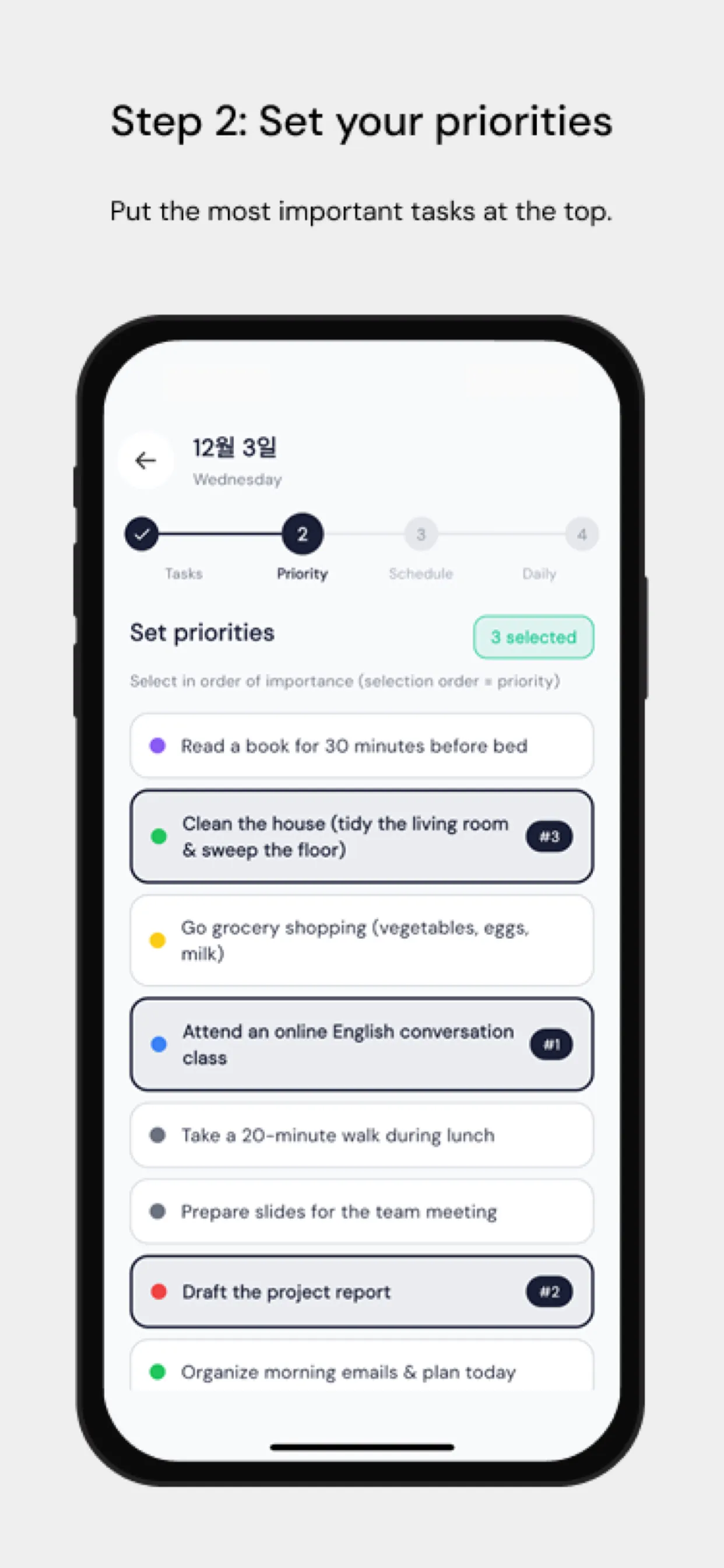
Het grootste wrijvingspunt is dat het handmatig slepen van taken naar een agenda tijdrovend is en zelden wordt bijgewerkt als plannen veranderen. Chrobox lost dit op door je takenlijst rechtstreeks met je agenda te synchroniseren. Voeg een taak toe met een geschatte duur en Chrobox zoekt het eerstvolgende beschikbare slot en maakt het blok automatisch aan. Als prioriteiten verschuiven, plant het de betrokken blokken opnieuw in zonder dat je hoeft in te grijpen.
Tips om je tijdblokken te beschermen
Communiceer je systeem naar je team. Laat ze weten dat geblokkeerde tijd betekent dat je niet beschikbaar bent, niet dat je slechts voorlopig bezet bent. Bepaal elke dag een specifiek venster voor spontane verzoeken, zodat collega's een voorspelbaar moment hebben om je te bereiken zonder je blokken te verstoren.
Bekijk elke ochtend je agenda voor de komende 24 uur. Controleer of je blokken aansluiten op je belangrijkste prioriteiten en pas ze aan als er een nieuwe urgente taak is opgedoken. Deze check van vijf minuten voorkomt dat de dag jou leidt in plaats van jij de dag.