Mengapa Kalendar Anda Sudah Menjadi Alat Time-Boxing
Kebanyakan orang menggunakan kalendar mereka sebagai rekod pasif komitmen. Time-boxing membalikkan ini: kalendar anda menjadi rancangan aktif untuk ke mana perhatian anda pergi setiap jam dalam sehari. Berita baiknya ialah Google Calendar, Apple Calendar, dan Outlook semuanya mempunyai segala-galanya yang anda perlukan untuk bermula hari ini.
Menyediakan Blok Masa dalam Google Calendar
Buka Google Calendar dan cipta acara baharu. Berikan nama tugasan anda, bukan label kabur seperti "kerja." Tetapkan tempoh yang sepadan dengan sesi fokus yang anda maksudkan. Di bawah menu "lagi pilihan," tetapkan status anda kepada "Sibuk" dan keterlihatan kepada "Peribadi" supaya rakan sekerja tidak dapat melihat butiran atau menjadualkan sesuatu bertindih dengan anda.
Gunakan kod warna untuk membezakan jenis blok. Sebagai contoh, hijau untuk deep work, biru untuk mesyuarat, dan oren untuk tugasan pentadbiran. Sistem warna Google Calendar memudahkan anda melihat sepintas lalu sama ada hari anda seimbang atau terlalu padat.
Cipta blok berulang untuk tabiat harian seperti sesi perancangan pagi anda atau semakan penghujung hari. Acara berulang memastikan rutin kritikal ini tidak pernah tersisih.
Time-Boxing dalam Apple Calendar
Apple Calendar berfungsi paling baik apabila digandingkan dengan iOS Reminders atau pengurus tugasan. Cipta kalendar khusus untuk blok masa dan berikan ia warna yang berbeza. Apabila anda menambah blok, gunakan medan nota untuk menyenaraikan tugasan tertentu yang anda rancang untuk selesaikan semasa sesi tersebut.
Aktifkan ciri "Amaran" untuk mendapat amaran lima minit sebelum setiap blok bermula. Ini memberikan anda masa untuk menutup tab lain, mendiamkan notifikasi, dan beralih secara mental ke mod fokus sebelum blok bermula.
Time-Boxing Outlook untuk Pasukan
Kekuatan Outlook ialah integrasinya yang mendalam dengan Microsoft Teams dan kalendar berkongsi. Blokkan masa menggunakan "Janji Temu Baharu" dan bukannya "Mesyuarat Baharu" untuk mengekalkannya di luar kalendar berkongsi secara lalai. Tetapkan status tunjuk-sebagai kepada "Sibuk" dan aktifkan bendera peribadi.
Gunakan warna kategori Outlook untuk sepadan dengan aliran kerja organisasi anda. Jika pasukan anda sudah menggunakan konvensyen warna untuk jenis mesyuarat, lanjutkan konvensyen tersebut kepada blok kerja peribadi anda supaya bahasa visual kekal konsisten.
Masalah dengan Time-Boxing Kalendar Secara Manual
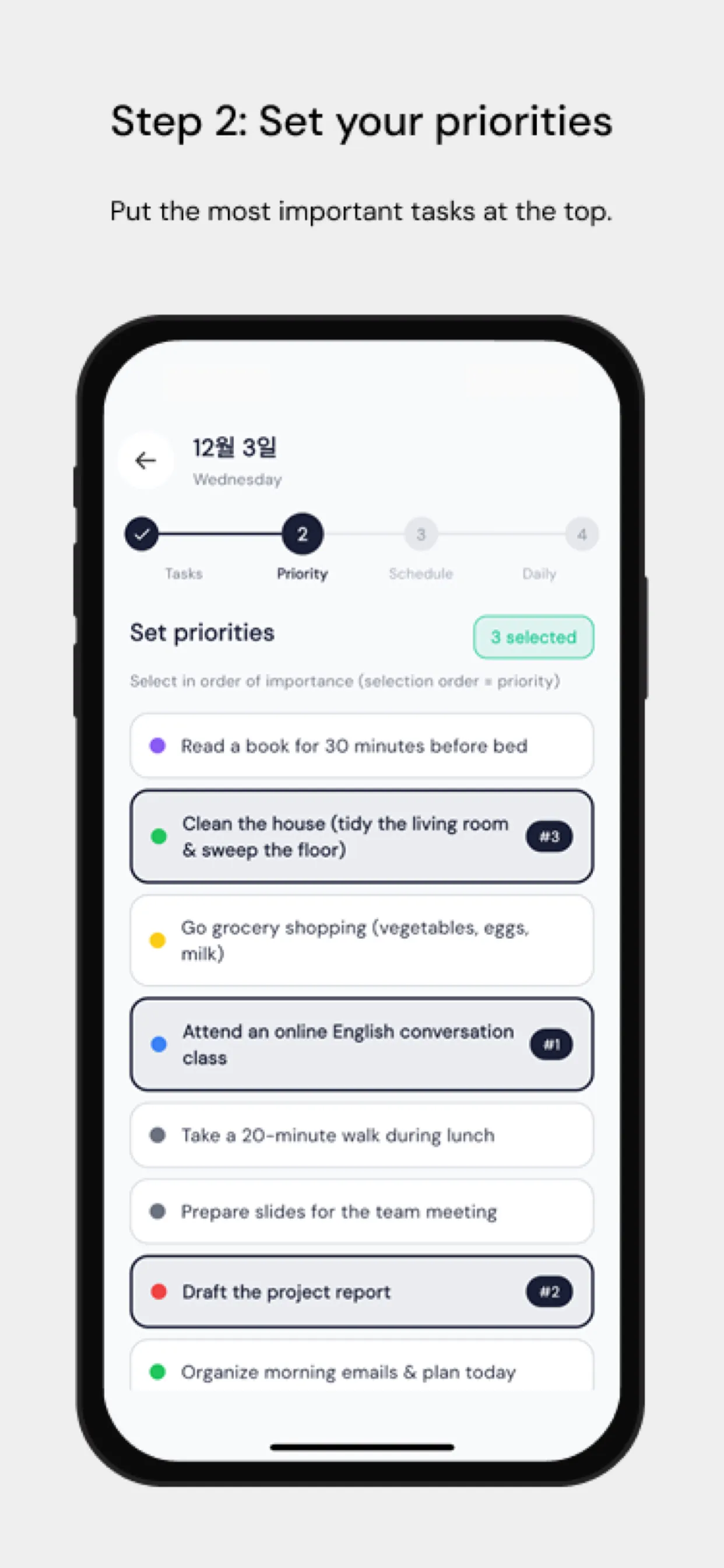
Titik geseran terbesar ialah menyeret tugasan secara manual ke atas kalendar memakan masa dan jarang dikemas kini apabila rancangan berubah. Chrobox menyelesaikan ini dengan menyegerakkan senarai tugasan anda terus dengan kalendar anda. Tambah tugasan dengan anggaran tempoh, dan Chrobox mencari slot yang tersedia seterusnya dan mencipta blok secara automatik. Apabila keutamaan berubah, ia menjadualkan semula blok yang terjejas tanpa campur tangan manual.
Petua untuk Melindungi Blok Masa Anda
Sampaikan sistem anda kepada pasukan anda. Beritahu mereka bahawa masa yang diblokkan bermaksud anda tidak tersedia, bukan sekadar mungkin sibuk. Tetapkan satu tempoh tertentu setiap hari untuk permintaan spontan supaya rakan sekerja mempunyai masa yang boleh diramal untuk menghubungi anda tanpa mengganggu blok anda.
Semak kalendar anda setiap pagi untuk 24 jam seterusnya. Sahkan bahawa blok anda selaras dengan keutamaan teratas anda dan laraskan jika tugasan mendesak baharu telah timbul. Semakan lima minit ini mengelakkan hari itu daripada mengawal anda dan bukannya anda yang mengawal hari itu.