Anda duduk untuk bekerja. Tiga puluh detik kemudian, tanpa disadari, Anda sudah mulai menggulir layar. Ini bukanlah kegagalan tekad — ini adalah aplikasi yang dirancang oleh ratusan insinyur untuk menginterupsi niat seperti ini. Jika Anda ingin mendapatkan kembali fokus Anda, memblokir aplikasi yang mengalihkan perhatian adalah satu-satunya perubahan dengan dampak terbesar yang bisa Anda lakukan, dan hanya butuh waktu sekitar 10 menit untuk menyiapkannya dengan benar.
Panduan ini membahas mengapa pemblokiran aplikasi sangat efektif, perbedaannya antara iOS dan Android, cara memadukannya dengan sesi fokus berjangka waktu (timeboxed), serta panduan praktis untuk memulainya hari ini.
Manfaat Memblokir Aplikasi yang Mengganggu
Memblokir aplikasi yang mengganggu selama waktu kerja yang direncanakan berarti lebih sedikit berpindah dari tugas, lebih sedikit stres akibat interupsi, dan lebih banyak waktu kerja yang dipakai untuk hal yang Anda rencanakan. Manfaatnya datang dari menghilangkan keputusan untuk "mengecek", bukan dari berusaha lebih keras.
- Lebih sedikit perpindahan, lebih sedikit residu perhatian. Setelah Anda mengecek sebuah aplikasi lalu kembali, sebagian perhatian Anda masih tertinggal pada apa yang baru saja dilihat (Leroy, 2009). Pemblokiran menghentikan perpindahan itu, alih-alih menyuruh Anda pulih darinya.
- Lebih sedikit stres akibat interupsi. Dalam studi laboratorium tentang pekerjaan email yang diinterupsi, orang menyelesaikan tugas mereka tidak lebih lambat, tetapi melaporkan lebih banyak stres, frustrasi, tekanan waktu, dan usaha (Mark, Gudith dan Klocke, 2008).
- Lebih sedikit tarikan dari ponsel yang tidak Anda gunakan. Dalam eksperimen Ward dan rekan-rekannya (2017), orang yang ponselnya berada di ruangan lain mendapat skor lebih tinggi pada tes memori kerja yang tersedia dibandingkan orang yang ponselnya ada di meja. Replikasi berikutnya menemukan efek yang lebih kecil atau tidak ada sama sekali, jadi anggap temuan ini sebagai petunjuk saja.
- Lebih banyak pekerjaan terencana yang selesai. Di Chrobox, pemblokiran berjalan di dalam kotak waktu. Dari 5.077 tugas yang direncanakan oleh 250 orang, tugas yang diberi kotak waktu selesai 48,1% dari waktu, dibandingkan 17,6% untuk tugas yang dibiarkan tanpa jadwal. Angka ini mengukur time-boxing secara keseluruhan, bukan pemblokiran saja, dan merupakan data observasional, bukan eksperimen. Sumber: Apakah Timeboxing Benar-Benar Efektif? Data Penyelesaian dari 5.077 Tugas yang Direncanakan.
Bagian-bagian berikut menjelaskan mengapa efek ini terjadi dan cara mengatur pemblokiran agar Anda terus menggunakannya.
Mengapa Pemblokiran Aplikasi Benar-Benar Efektif
Residu Perhatian
Ketika Anda beralih dari tugas yang sedang Anda fokuskan untuk memeriksa notifikasi lalu kembali lagi, otak Anda tidak beralih dengan bersih. Penelitian Sophie Leroy tentang "residu perhatian" (attention residue) menemukan bahwa sebagian dari kapasitas kognitif Anda tetap tertinggal pada tugas sebelumnya selama beberapa menit setelah beralih — artinya, memeriksa aplikasi selama 10 detik dapat mengorbankan 5-10 menit penurunan fokus pada pekerjaan Anda yang sebenarnya. Pemblokiran aplikasi mencegah peralihan tersebut terjadi sejak awal, yang jauh lebih hemat energi daripada memulihkan fokus setelahnya.
Siklus Imbalan Variabel
Umpan media sosial, aplikasi pesan instan, dan platform video pendek dibangun di atas penguatan rasio variabel (variable-ratio reinforcement) — mekanisme psikologis yang sama yang membuat mesin slot adiktif. Anda tidak tahu apakah guliran berikutnya akan memunculkan sesuatu yang menarik, dan ketidakpastian itulah yang membuat Anda terus menggulir melampaui batas waktu yang Anda niatkan. Tidak ada jumlah tekad yang dapat secara konsisten mengalahkan siklus imbalan variabel pada saat itu terjadi; satu-satunya solusi yang tahan lama adalah menutup akses selama jendela waktu ketika Anda perlu berpikir.
Mengurangi Beban Keputusan
Setiap kali ponsel Anda berada dalam jangkauan, "haruskah saya memeriksanya?" menjadi keputusan aktif yang harus diselesaikan oleh otak Anda — puluhan kali setiap jam. Pemblokiran menghilangkan keputusan tersebut sepenuhnya selama jendela waktu yang dijadwalkan, membebaskan kapasitas mental untuk pekerjaan nyata di hadapan Anda.
iOS vs Android: Cara Kerja Pemblokiran Aplikasi di Balik Layar
Kedua platform ini menggunakan pendekatan teknis yang sangat berbeda, dan memahami perbedaan ini membantu menetapkan ekspektasi yang realistis.
| iOS (Screen Time / Family Controls) | Android (Accessibility Service) | |
|---|---|---|
| Mekanisme | Kerangka kerja Family Controls Apple memberikan "Shield" (Perisai) pada aplikasi yang dipilih di tingkat OS | Layanan aksesibilitas memantau perubahan aplikasi di latar depan dan mencegat peluncuran |
| Pengaturan | Permintaan otorisasi satu kali, lalu pemilihan aplikasi melalui pemilih sistem | Pemberian izin aksesibilitas, lalu pemilihan aplikasi di dalam aplikasi |
| Kesulitan bypass | Tinggi — perisai diterapkan oleh OS, bukan oleh aplikasi itu sendiri | Sedang — bergantung pada seberapa agresif layanan tersebut diterapkan |
| Kustomisasi | Apple membatasi apa yang dapat ditampilkan oleh layar pemblokiran (UI sistem tetap pada beberapa versi) | Layar pemblokiran khusus yang lebih fleksibel dapat dibuat |
| Keandalan di berbagai pembaruan OS | Umumnya stabil karena menggunakan kerangka kerja resmi Apple | Mungkin memerlukan penyesuaian setelah pembaruan besar versi Android |
Tidak ada pendekatan yang sepenuhnya "lebih baik" — pemblokiran iOS lebih tahan terhadap manipulasi karena diterapkan oleh sistem operasi itu sendiri, sementara pemblokiran Android dapat menawarkan pengalaman langsung yang lebih dapat dikustomisasi. Keduanya merupakan pendekatan yang sah dan didukung dengan baik hingga tahun 2026.
Memblokir Aplikasi Saja Tidak Cukup
Inilah bagian yang dilewati oleh sebagian besar panduan: memblokir aplikasi yang mengalihkan perhatian memang menghilangkan hal negatif, tetapi tidak menambahkan hal positif. Jika Anda memblokir Instagram selama dua jam tanpa rencana tentang apa yang harus dilakukan sebagai gantinya, Anda kemungkinan besar akan mengisi kekosongan tersebut dengan gangguan bernilai rendah lainnya, atau justru merasa gelisah dan tidak produktif.
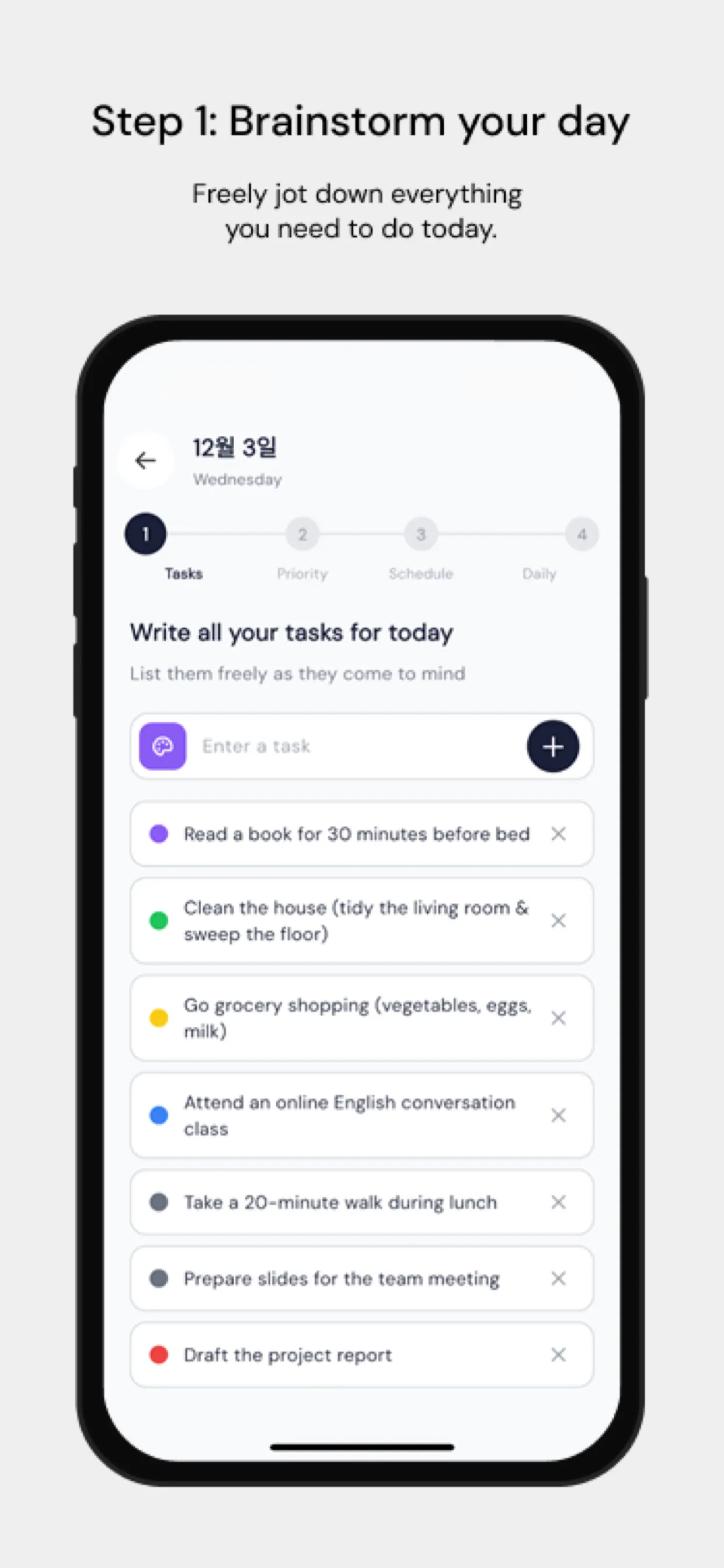
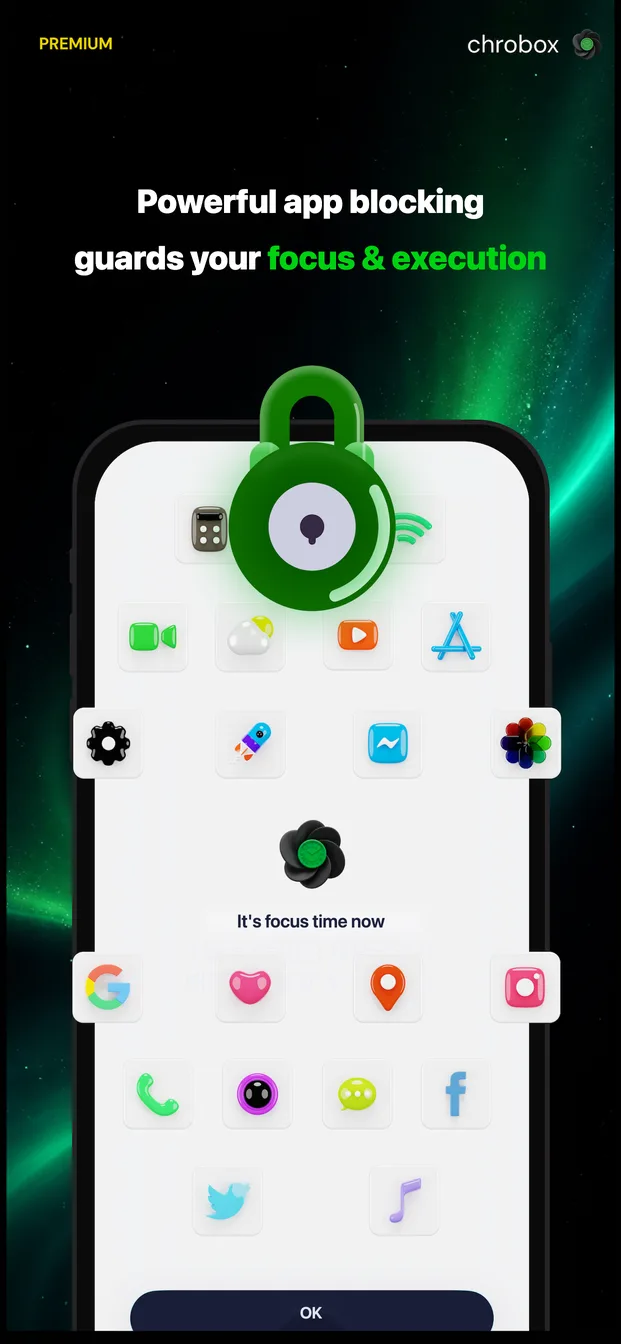
Itulah mengapa sistem fokus yang paling efektif memadukan pemblokiran aplikasi dengan timeboxing — menetapkan tugas tertentu ke blok waktu tertentu. Chrobox melakukan ini dengan mengaitkan pemblokiran secara langsung ke jadwal yang Anda rencanakan: saat tugas fokus dimulai, aplikasi mengganggu yang Anda pilih akan otomatis dilindungi (iOS) atau dicegat (Android) selama durasi blok tersebut, lalu terbuka kuncinya saat tugas selesai. Anda tidak perlu lagi ingat untuk mengaktifkan pemblokiran, dan Anda tidak akan pernah diblokir tanpa ada rencana aktivitas yang harus dilakukan.
Panduan Pengaturan Praktis
Langkah 1: Identifikasi Gangguan Nyata Anda
Jangan memblokir semuanya — hal itu justru membuat kebiasaan memblokir aplikasi ditinggalkan dalam waktu seminggu. Periksa laporan Screen Time Anda yang ada dan identifikasi 2-4 aplikasi yang menyumbang sebagian besar penggunaan tidak terencana Anda. Bagi kebanyakan orang, ini adalah aplikasi video pendek, umpan media sosial, dan satu aplikasi pesan instan yang lebih sering digunakan untuk sekadar menjelajah daripada komunikasi yang sebenarnya.
Langkah 2: Pilih Jendela Waktu Pemblokiran, Bukan Larangan Total
Tentukan kapan Anda benar-benar membutuhkan perlindungan — biasanya selama blok kerja mendalam (deep-work) yang Anda rencanakan, bukan sepanjang hari Anda. Pola awal yang umum adalah dua blok berdurasi 90 menit: satu di pertengahan pagi, dan satu di pertengahan sore.
Langkah 3: Berikan Izin Sistem
Di iOS, ini berarti memberikan otorisasi Family Controls saat pertama kali Anda memilih aplikasi yang akan diblokir — sebuah dialog sistem satu kali. Di Android, ini berarti memberikan izin aksesibilitas yang diminta aplikasi, yang memungkinkannya mendeteksi dan mencegat peluncuran aplikasi.
Langkah 4: Hubungkan Pemblokiran ke Tugas yang Direncanakan, Bukan Timer Mandiri
Timer biasa dengan pemblokiran memang lebih baik daripada tidak sama sekali, tetapi tugas berjangka waktu (timeboxed) yang disertai pemblokiran jauh lebih efektif — Anda tahu persis untuk apa perhatian yang telah dibebaskan tersebut digunakan, yang membedakan antara "tidak sedang bermain ponsel" dan "benar-benar melakukan pekerjaan."
Langkah 5: Tinjau Setelah Satu Minggu
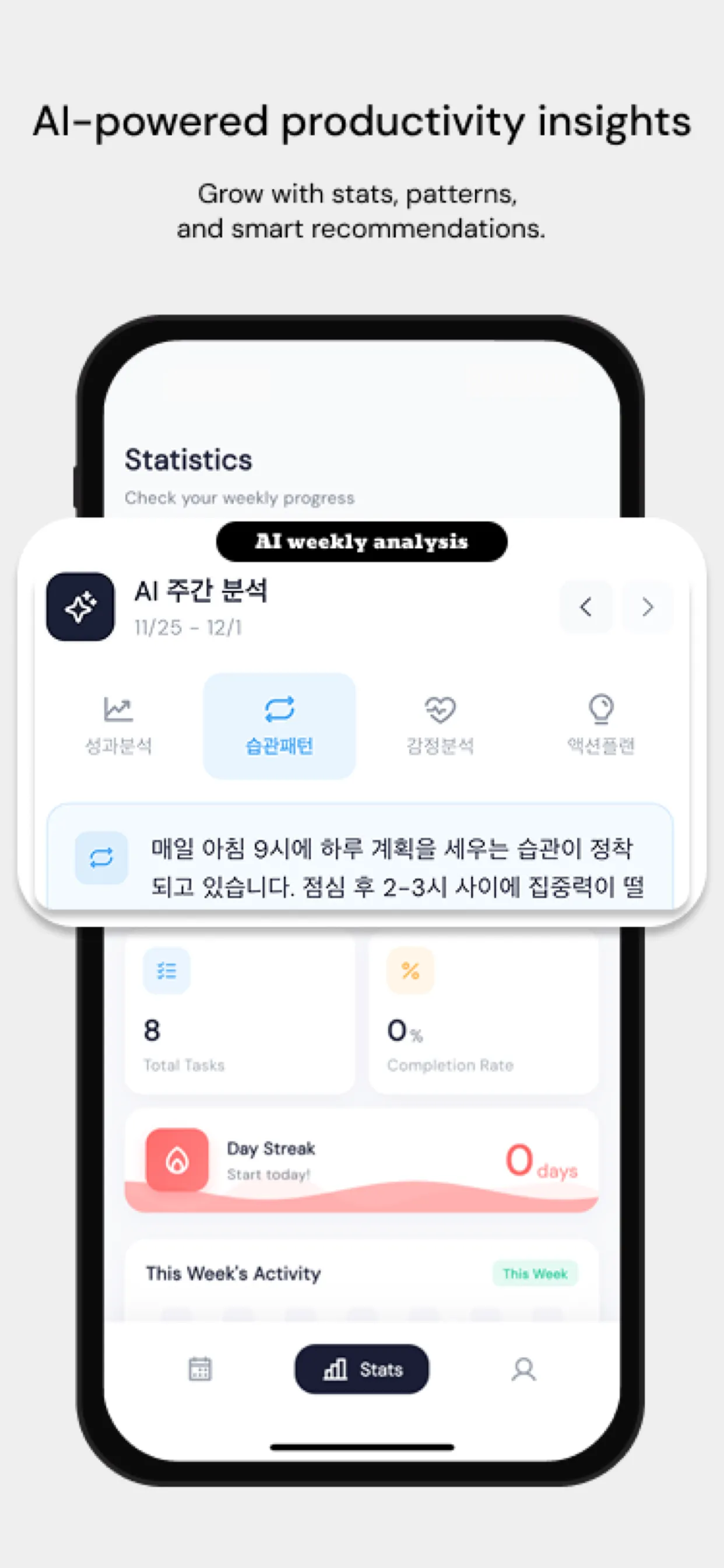
Lihat berapa banyak sesi yang Anda selesaikan dengan pemblokiran aktif dibandingkan dengan berapa banyak sesi yang Anda lewati atau abaikan. Sesuaikan daftar aplikasi yang diblokir dan durasi jendela waktu berdasarkan apa yang Anda pelajari, daripada sekadar menebak-nebak di awal.
Kesimpulan
Pemblokiran aplikasi bukanlah hukuman — melainkan menutup pintu terbuka yang sebenarnya tidak pernah ingin Anda masuki sejak awal. Dipadukan dengan rencana nyata untuk waktu yang Anda bebaskan, hal ini mengubah "Saya harus lebih fokus" dari niat yang samar menjadi setelan bawaan (default) yang otomatis. Atur jendela fokus terblokir pertama Anda hari ini, meskipun singkat, dan rasakan betapa berbedanya perhatian penuh selama 45 menit dibandingkan dengan 45 menit saat ponsel Anda hanya berjarak satu pandangan saja.