
आपका कैलेंडर पहले से ही एक टाइम-बॉक्सिंग टूल क्यों है
ज़्यादातर लोग अपने कैलेंडर को प्रतिबद्धताओं के निष्क्रिय रिकॉर्ड के रूप में इस्तेमाल करते हैं। टाइम-बॉक्सिंग इसे पलट देती है: आपका कैलेंडर इस बात की सक्रिय योजना बन जाता है कि दिन के हर घंटे आपका ध्यान कहां जाएगा। अच्छी खबर यह है कि Google Calendar, Apple Calendar और Outlook, तीनों में वह सब कुछ है जो आपको आज ही शुरू करने के लिए चाहिए।
Google Calendar में टाइम ब्लॉक सेट करना
Google Calendar खोलें और एक नया इवेंट बनाएं। उसे अपने काम का नाम दें, "काम" जैसा अस्पष्ट लेबल नहीं। अवधि को अपने इच्छित फ़ोकस सत्र के अनुसार रखें। "more options" मेनू में अपना स्टेटस "Busy" और दृश्यता "Private" सेट करें ताकि सहकर्मी विवरण न देख सकें या आपके ऊपर शेड्यूल न कर सकें।
ब्लॉक के प्रकारों को अलग करने के लिए रंग-कोडिंग इस्तेमाल करें। उदाहरण के लिए, डीप वर्क के लिए हरा, मीटिंग के लिए नीला और प्रशासनिक कामों के लिए नारंगी। Google Calendar की रंग प्रणाली एक नज़र में देखना आसान बनाती है कि आपका दिन संतुलित है या ओवरलोड।
सुबह की योजना सत्र या दिन के अंत की समीक्षा जैसी दैनिक आदतों के लिए दोहराए जाने वाले ब्लॉक बनाएं। दोहराए जाने वाले इवेंट सुनिश्चित करते हैं कि ये महत्वपूर्ण रूटीन कभी बाहर न धकेले जाएं।
Apple Calendar में टाइम-बॉक्सिंग
Apple Calendar तब सबसे अच्छा काम करता है जब उसे iOS Reminders या किसी टास्क मैनेजर के साथ जोड़ा जाए। टाइम ब्लॉक के लिए एक समर्पित कैलेंडर बनाएं और उसे एक अलग रंग दें। जब आप कोई ब्लॉक जोड़ें, तो नोट्स फ़ील्ड में उन विशिष्ट कामों की सूची लिखें जो आप उस सत्र में पूरे करने की योजना रखते हैं।
हर ब्लॉक शुरू होने से पांच मिनट पहले चेतावनी पाने के लिए "Alerts" फ़ीचर चालू करें। इससे आपको ब्लॉक शुरू होने से पहले दूसरे टैब बंद करने, नोटिफ़िकेशन शांत करने और मानसिक रूप से फ़ोकस मोड में जाने का समय मिलता है।
टीमों के लिए Outlook टाइम-बॉक्सिंग
Outlook की ताकत Microsoft Teams और साझा कैलेंडर के साथ उसका गहरा इंटीग्रेशन है। समय ब्लॉक करने के लिए "New Meeting" की जगह "New Appointment" का उपयोग करें ताकि वह डिफ़ॉल्ट रूप से साझा कैलेंडर से बाहर रहे। show-as स्टेटस "Busy" सेट करें और private फ़्लैग चालू करें।
अपने संगठन के वर्कफ़्लो से मेल खाने के लिए Outlook के श्रेणी रंग इस्तेमाल करें। अगर आपकी टीम पहले से मीटिंग के प्रकारों के लिए रंग परंपराएं इस्तेमाल करती है, तो उन परंपराओं को अपने व्यक्तिगत कार्य ब्लॉक तक बढ़ाएं ताकि दृश्य भाषा एकसमान रहे।
मैन्युअल कैलेंडर टाइम-बॉक्सिंग की समस्या
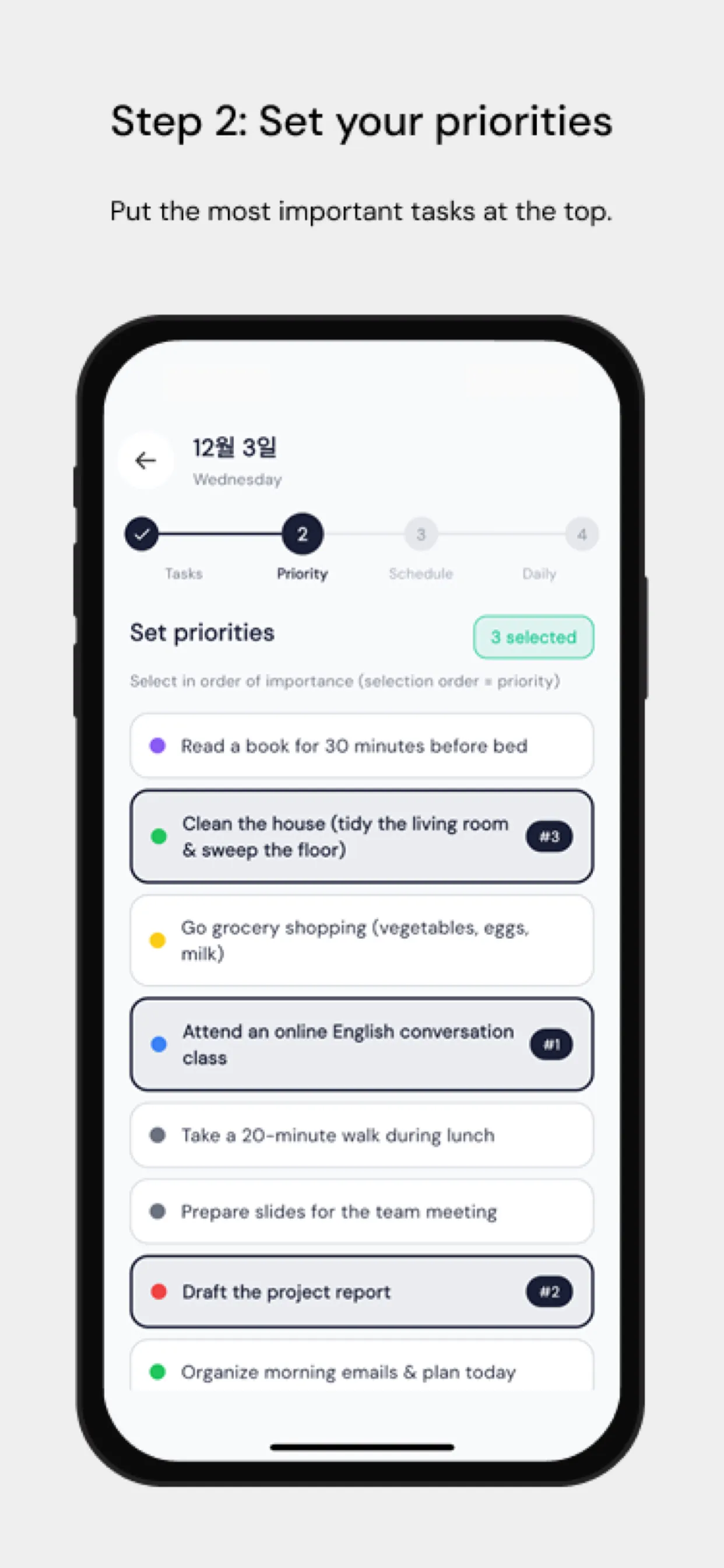
सबसे बड़ा घर्षण बिंदु यह है कि कामों को हाथ से कैलेंडर पर खींचना समय लेने वाला है और योजनाएं बदलने पर शायद ही कभी अपडेट किया जाता है। Chrobox इसे आपकी टास्क लिस्ट को सीधे आपके कैलेंडर से सिंक करके हल करता है। अनुमानित अवधि के साथ कोई काम जोड़ें, और Chrobox अगला उपलब्ध स्लॉट खोजकर ब्लॉक अपने आप बना देता है। जब प्राथमिकताएं बदलती हैं, तो वह प्रभावित ब्लॉकों को बिना हाथ से दखल दिए दोबारा शेड्यूल कर देता है।
अपने टाइम ब्लॉक को सुरक्षित रखने के सुझाव
अपनी प्रणाली के बारे में अपनी टीम को बताएं। उन्हें बताएं कि ब्लॉक किए गए समय का मतलब है कि आप उपलब्ध नहीं हैं, सिर्फ़ अस्थायी रूप से व्यस्त नहीं। अचानक आने वाले अनुरोधों के लिए हर दिन एक विशिष्ट खिड़की तय करें ताकि सहकर्मियों के पास आपके ब्लॉक में खलल डाले बिना आप तक पहुंचने का एक अनुमानित समय हो।
हर सुबह अगले 24 घंटे के लिए अपना कैलेंडर देखें। पुष्टि करें कि आपके ब्लॉक आपकी शीर्ष प्राथमिकताओं से मेल खाते हैं और अगर कोई नया ज़रूरी काम उभरा है तो बदलाव करें। यह पांच मिनट की जांच दिन को आपको चलाने से रोकती है, ताकि आप दिन को चलाएं।