Pourquoi votre calendrier est déjà un outil de time-boxing
La plupart des gens utilisent leur calendrier comme un registre passif de leurs engagements. Le time-boxing renverse cette logique : votre calendrier devient un plan actif de l'endroit où va votre attention à chaque heure de la journée. La bonne nouvelle, c'est que Google Calendar, Apple Calendar et Outlook offrent tout ce dont vous avez besoin pour commencer dès aujourd'hui.
Configurer des blocs de temps dans Google Calendar
Ouvrez Google Calendar et créez un nouvel événement. Donnez-lui le nom de votre tâche, et non une étiquette vague comme « travail ». Réglez la durée en fonction de la session de concentration prévue. Dans le menu « Plus d'options », définissez votre statut sur « Occupé » et la visibilité sur « Privé » afin que vos collègues ne puissent pas voir les détails ni planifier par-dessus.
Utilisez un code couleur pour distinguer les types de blocs. Par exemple, vert pour le deep work, bleu pour les réunions et orange pour les tâches administratives. Le système de couleurs de Google Calendar permet de voir d'un coup d'œil si votre journée est équilibrée ou surchargée.
Créez des blocs récurrents pour les habitudes quotidiennes comme votre séance de planification du matin ou votre bilan de fin de journée. Les événements récurrents garantissent que ces routines essentielles ne se font jamais évincer.
Le time-boxing dans Apple Calendar
Apple Calendar fonctionne mieux associé à Rappels d'iOS ou à un gestionnaire de tâches. Créez un calendrier dédié aux blocs de temps et donnez-lui une couleur distincte. Quand vous ajoutez un bloc, utilisez le champ de notes pour lister les tâches précises que vous prévoyez d'accomplir pendant cette session.
Activez la fonction « Alertes » pour recevoir un avertissement cinq minutes avant le début de chaque bloc. Cela vous laisse le temps de fermer d'autres onglets, de couper les notifications et de passer mentalement en mode concentration avant le début du bloc.
Le time-boxing avec Outlook pour les équipes
La force d'Outlook est sa profonde intégration avec Microsoft Teams et les calendriers partagés. Bloquez du temps en utilisant « Nouveau rendez-vous » plutôt que « Nouvelle réunion » pour qu'il reste par défaut hors des calendriers partagés. Réglez l'état d'affichage sur « Occupé » et activez l'indicateur privé.
Utilisez les couleurs de catégorie d'Outlook pour les faire correspondre au fonctionnement de votre organisation. Si votre équipe utilise déjà des conventions de couleurs pour les types de réunions, étendez-les à vos blocs de travail personnels afin que le langage visuel reste cohérent.
Le problème du time-boxing manuel dans un calendrier
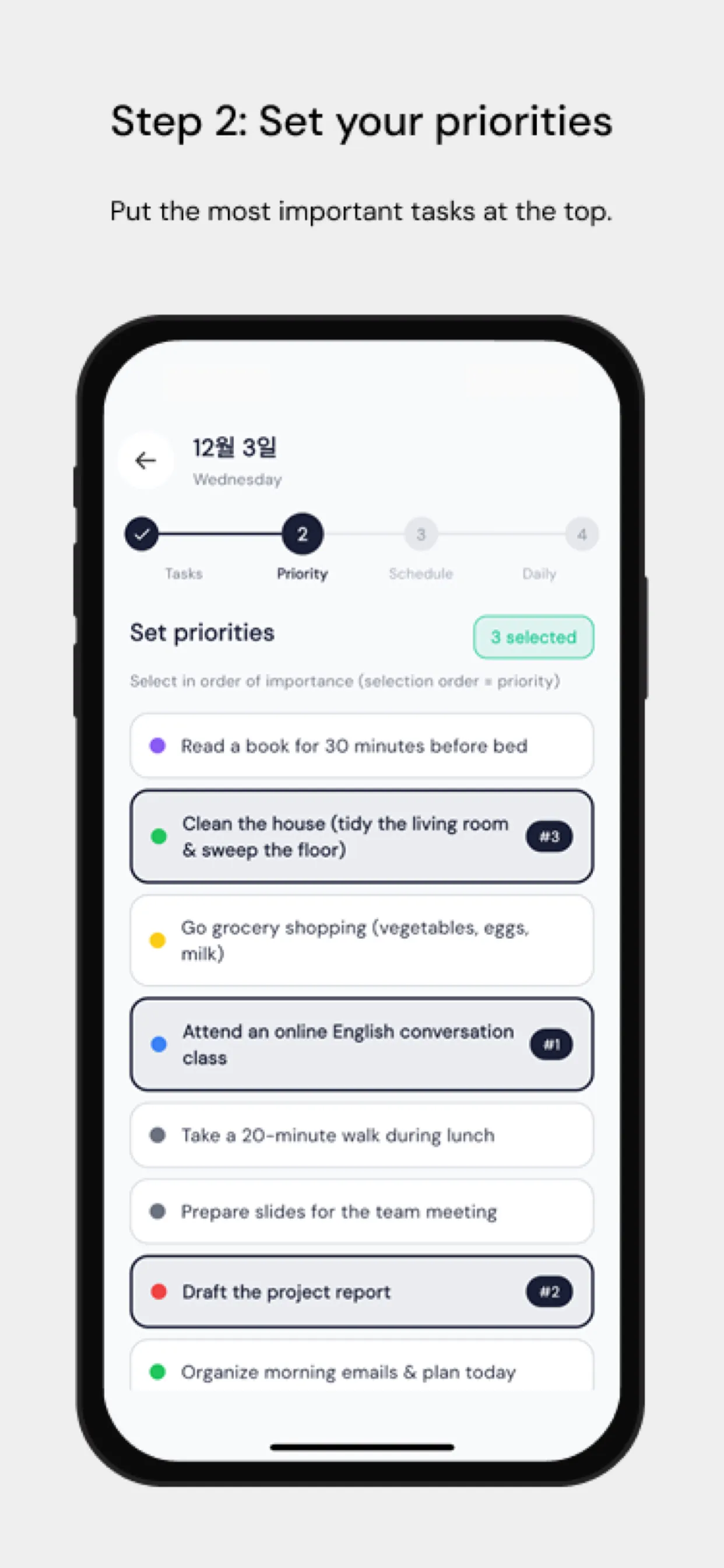
Le principal point de friction est que faire glisser manuellement des tâches dans un calendrier prend du temps et que celui-ci est rarement mis à jour quand les plans changent. Chrobox résout ce problème en synchronisant directement votre liste de tâches avec votre calendrier. Ajoutez une tâche avec une durée estimée, et Chrobox trouve le prochain créneau disponible et crée automatiquement le bloc. Quand les priorités changent, il replanifie les blocs concernés sans intervention manuelle.
Conseils pour protéger vos blocs de temps
Communiquez votre système à votre équipe. Faites-leur savoir qu'un temps bloqué signifie que vous êtes indisponible, et pas simplement provisoirement occupé. Désignez chaque jour une plage précise pour les demandes impromptues, afin que vos collègues aient un moment prévisible pour vous joindre sans perturber vos blocs.
Passez en revue votre calendrier chaque matin pour les 24 heures à venir. Vérifiez que vos blocs correspondent à vos priorités principales et ajustez si une nouvelle tâche urgente est apparue. Ce contrôle de cinq minutes évite que ce soit la journée qui vous mène, plutôt que l'inverse.