Por Qué tu Calendario Ya Es una Herramienta de Timeboxing
La mayoría de las personas usa su calendario como un registro pasivo de compromisos. El timeboxing le da la vuelta: tu calendario se convierte en un plan activo de adónde va tu atención cada hora del día. La buena noticia es que Google Calendar, Apple Calendar y Outlook tienen todo lo que necesitas para empezar hoy mismo.
Cómo Configurar Bloques de Tiempo en Google Calendar
Abre Google Calendar y crea un evento nuevo. Ponle el nombre de tu tarea, no una etiqueta vaga como "trabajo". Ajusta la duración a la de tu sesión de concentración prevista. En el menú de "más opciones", establece tu estado como "Ocupado" y la visibilidad como "Privado" para que tus compañeros no puedan ver los detalles ni programar reuniones encima.
Usa la codificación por colores para distinguir los tipos de bloque. Por ejemplo, verde para el trabajo profundo, azul para las reuniones y naranja para las tareas administrativas. El sistema de colores de Google Calendar facilita ver de un vistazo si tu día está equilibrado o sobrecargado.
Crea bloques recurrentes para hábitos diarios como tu sesión de planificación matutina o la revisión de fin de jornada. Los eventos recurrentes garantizan que estas rutinas fundamentales nunca queden desplazadas.
Timeboxing en Apple Calendar
Apple Calendar funciona mejor combinado con Recordatorios de iOS o con un gestor de tareas. Crea un calendario dedicado a los bloques de tiempo y dale un color distintivo. Cuando añadas un bloque, usa el campo de notas para enumerar las tareas concretas que planeas completar durante esa sesión.
Activa la función de "Avisos" para recibir una alerta cinco minutos antes de que empiece cada bloque. Esto te da tiempo para cerrar otras pestañas, silenciar las notificaciones y pasar mentalmente al modo concentración antes de que comience el bloque.
Timeboxing en Outlook para Equipos
La fortaleza de Outlook es su profunda integración con Microsoft Teams y los calendarios compartidos. Reserva el tiempo con "Nueva cita" en lugar de "Nueva reunión" para mantenerlo fuera de los calendarios compartidos de forma predeterminada. Establece el estado "Mostrar como" en "Ocupado" y activa el indicador de privado.
Usa los colores de categoría de Outlook para adaptarte al flujo de trabajo de tu organización. Si tu equipo ya usa convenciones de color para los tipos de reunión, extiende esas convenciones a tus bloques de trabajo personales para que el lenguaje visual siga siendo coherente.
El Problema del Timeboxing Manual en el Calendario
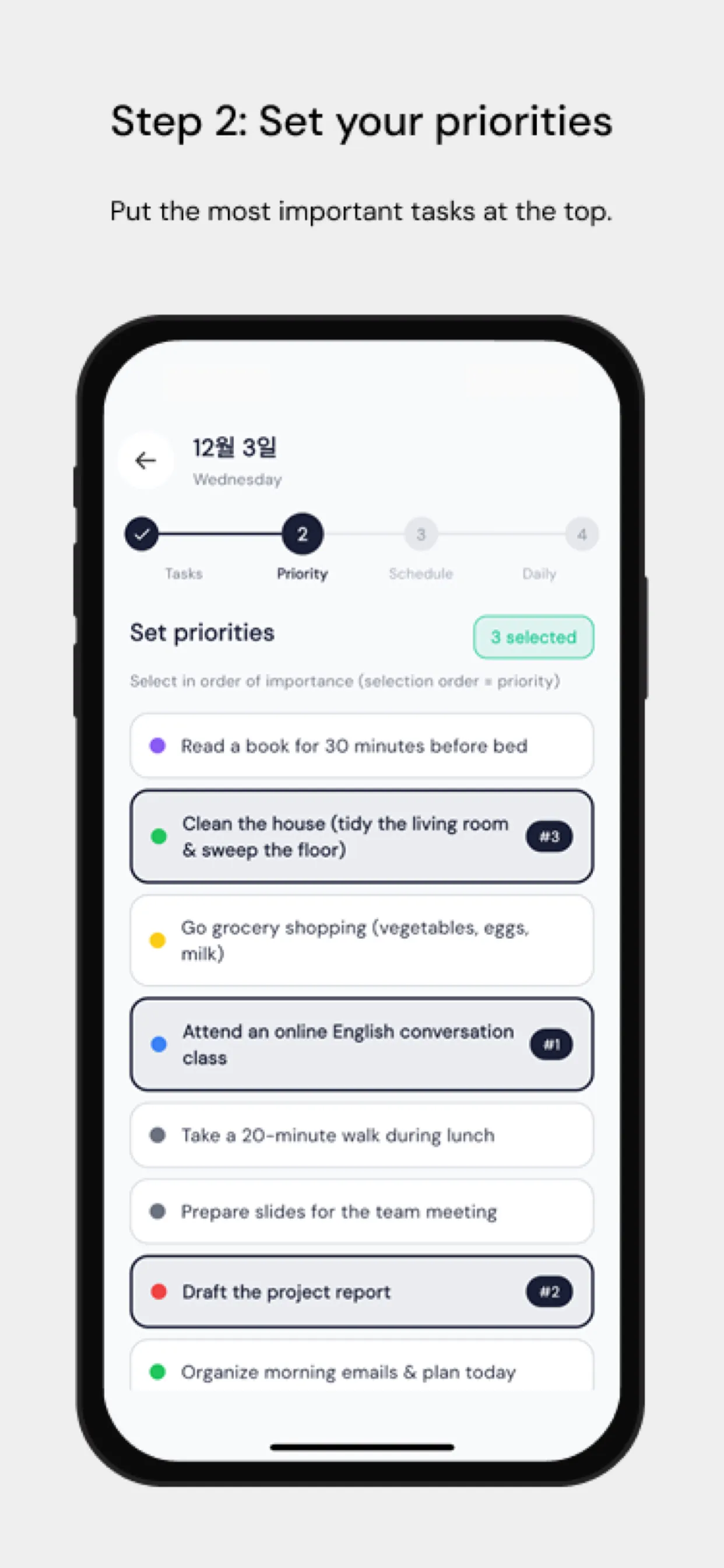
El mayor punto de fricción es que arrastrar tareas a un calendario a mano lleva mucho tiempo y rara vez se actualiza cuando cambian los planes. Chrobox lo resuelve sincronizando tu lista de tareas directamente con tu calendario. Añade una tarea con una duración estimada y Chrobox encuentra el siguiente hueco disponible y crea el bloque automáticamente. Cuando cambian las prioridades, reprograma los bloques afectados sin intervención manual.
Consejos para Proteger tus Bloques de Tiempo
Comunica tu sistema a tu equipo. Hazles saber que el tiempo bloqueado significa que no estás disponible, y no solo provisionalmente ocupado. Designa una franja concreta cada día para las peticiones improvisadas, de modo que tus compañeros tengan un momento predecible para contactar contigo sin interrumpir tus bloques.
Revisa tu calendario cada mañana para las próximas 24 horas. Confirma que tus bloques se alinean con tus prioridades principales y ajusta si ha surgido una nueva tarea urgente. Esta comprobación de cinco minutos evita que el día te dirija a ti en lugar de dirigirlo tú.