Warum dein Kalender schon ein Timeboxing-Werkzeug ist
Die meisten Menschen nutzen ihren Kalender als passive Aufzeichnung von Verpflichtungen. Timeboxing dreht das um: Dein Kalender wird zum aktiven Plan dafür, wohin deine Aufmerksamkeit in jeder Stunde des Tages fließt. Die gute Nachricht: Google Calendar, Apple Kalender und Outlook haben alles, was du brauchst, um noch heute zu starten.
Zeitblöcke in Google Calendar einrichten
Öffne Google Calendar und lege einen neuen Termin an. Gib ihm den Namen deiner Aufgabe, nicht eine vage Bezeichnung wie „Arbeit". Stelle die Dauer passend zu deiner geplanten Fokussitzung ein. Setze im Menü „Weitere Optionen" deinen Status auf „Beschäftigt" und die Sichtbarkeit auf „Privat", damit Kolleginnen und Kollegen die Details nicht sehen und dich nicht überbuchen können.
Nutze Farbcodierung, um Blocktypen zu unterscheiden. Zum Beispiel Grün für Deep Work, Blau für Meetings und Orange für Verwaltungsaufgaben. Mit dem Farbsystem von Google Calendar erkennst du auf einen Blick, ob dein Tag ausgewogen oder überladen ist.
Lege wiederkehrende Blöcke für tägliche Gewohnheiten an, etwa deine morgendliche Planungssitzung oder den Rückblick am Tagesende. Wiederkehrende Termine sorgen dafür, dass diese wichtigen Routinen nie verdrängt werden.
Timeboxing im Apple Kalender
Der Apple Kalender funktioniert am besten in Kombination mit iOS-Erinnerungen oder einem Aufgabenmanager. Lege einen eigenen Kalender für Zeitblöcke an und gib ihm eine auffällige Farbe. Wenn du einen Block hinzufügst, nutze das Notizfeld, um die konkreten Aufgaben aufzulisten, die du in dieser Sitzung erledigen willst.
Aktiviere die Funktion „Erinnerung", um fünf Minuten vor Beginn jedes Blocks eine Vorwarnung zu erhalten. So hast du Zeit, andere Tabs zu schließen, Benachrichtigungen stummzuschalten und dich mental auf den Fokusmodus einzustellen, bevor der Block beginnt.
Timeboxing in Outlook für Teams
Die Stärke von Outlook ist die tiefe Integration mit Microsoft Teams und geteilten Kalendern. Blocke Zeit mit „Neuer Termin" statt „Neue Besprechung", damit sie standardmäßig aus geteilten Kalendern herausbleibt. Setze den Anzeigestatus auf „Beschäftigt" und aktiviere die Markierung „Privat".
Nutze die Kategoriefarben von Outlook passend zum Workflow deiner Organisation. Wenn dein Team bereits Farbkonventionen für Meetingarten verwendet, dehne diese auf deine persönlichen Arbeitsblöcke aus, damit die visuelle Sprache einheitlich bleibt.
Das Problem mit manuellem Timeboxing im Kalender
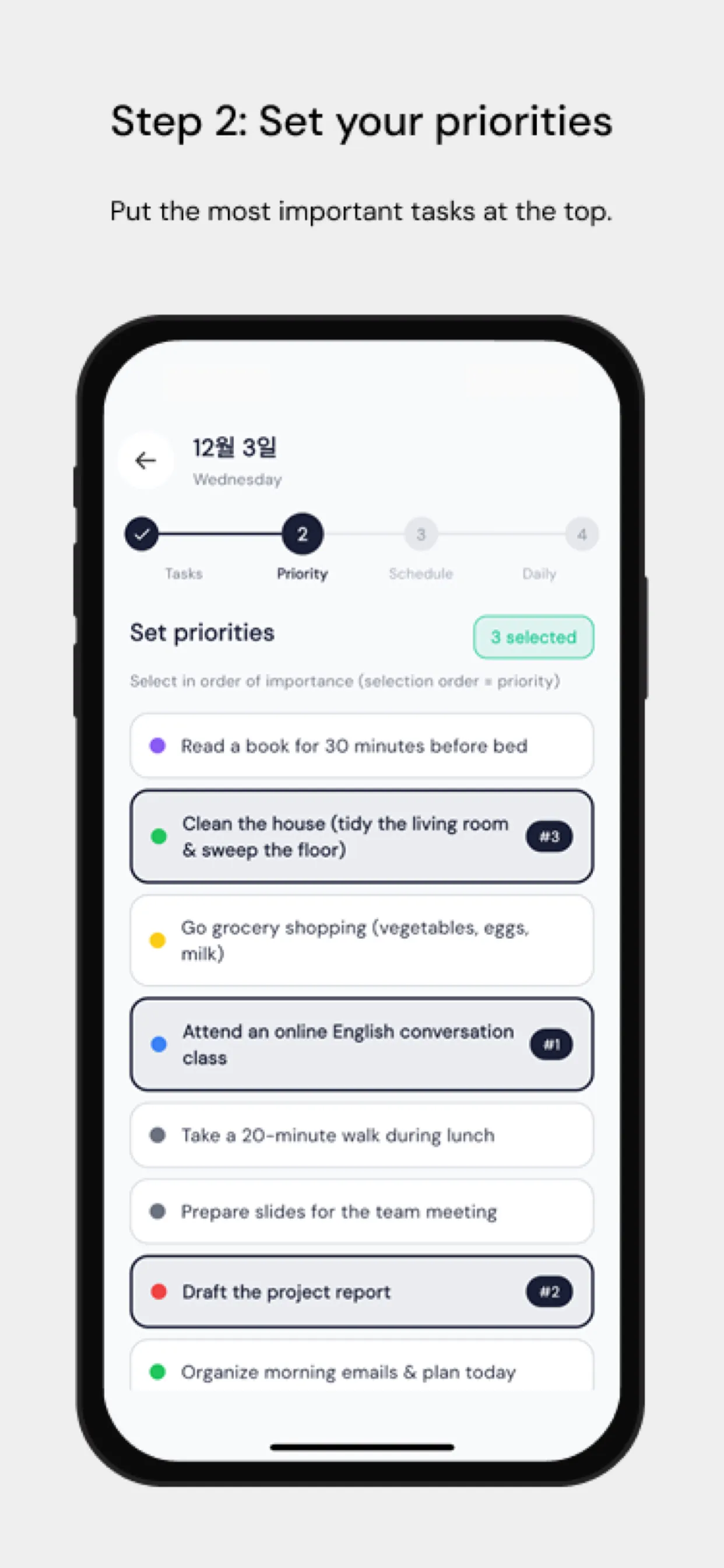
Der größte Reibungspunkt: Aufgaben manuell in einen Kalender zu ziehen, kostet Zeit und wird bei Planänderungen selten aktualisiert. Chrobox löst das, indem es deine Aufgabenliste direkt mit deinem Kalender synchronisiert. Füge eine Aufgabe mit geschätzter Dauer hinzu, und Chrobox findet den nächsten freien Slot und legt den Block automatisch an. Verschieben sich Prioritäten, plant es betroffene Blöcke ohne manuelles Eingreifen um.
Tipps zum Schutz deiner Zeitblöcke
Kommuniziere dein System an dein Team. Lass sie wissen, dass geblockte Zeit bedeutet, dass du nicht verfügbar bist – nicht nur vorläufig beschäftigt. Lege jeden Tag ein festes Zeitfenster für spontane Anfragen fest, damit Kolleginnen und Kollegen dich zu einer vorhersehbaren Zeit erreichen können, ohne deine Blöcke zu stören.
Sieh dir deinen Kalender jeden Morgen für die nächsten 24 Stunden an. Prüfe, ob deine Blöcke zu deinen wichtigsten Prioritäten passen, und passe an, falls eine neue dringende Aufgabe aufgetaucht ist. Dieser fünfminütige Check verhindert, dass der Tag dich steuert, statt dass du den Tag steuerst.